ExpertOption Login and Trading: Access Binary Options Platform

You’ll find clear login procedures for web and mobile, quick fixes for password recovery and locked sessions, and instructions to switch between demo and live accounts. The article then walks through the trading workflow used on ExpertOption: choosing assets, reading charts, selecting expiry and stake, executing a binary trade, and monitoring expiry outcomes. Brief notes cover verification and funding as prerequisites for live withdrawals, plus simple risk controls to protect capital while you learn.

How to Log In to ExpertOption
How to Log In to the ExpertOption Account
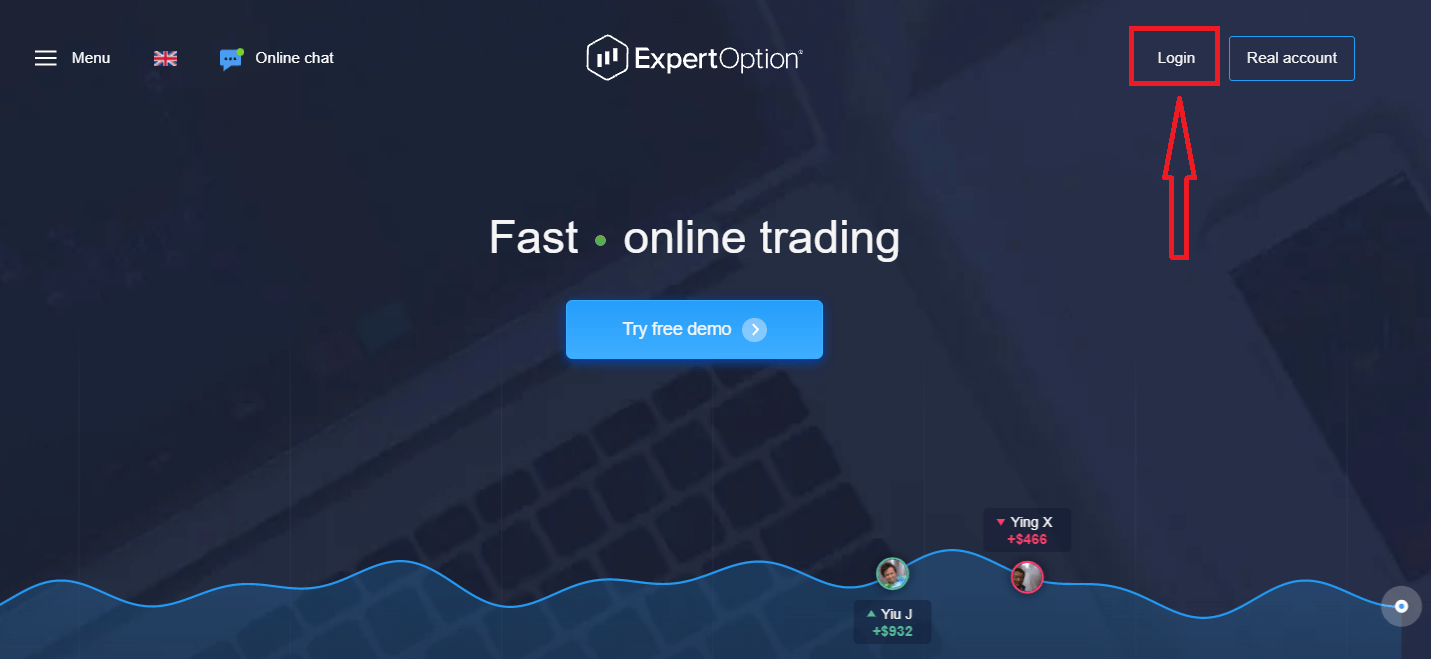
- Go to the mobile ExpertOption App or Website.
- Click on “Login”.
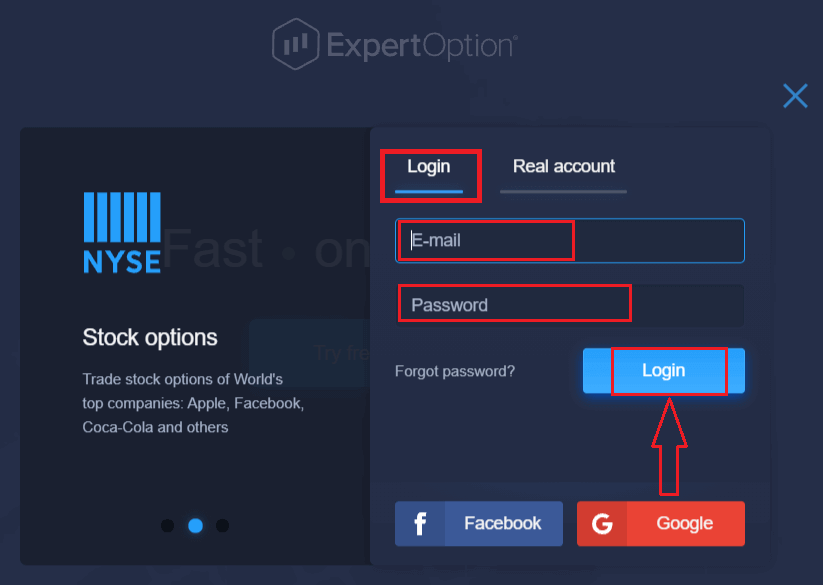
- Enter your email and password.
- Click on the “Log in” blue button.
- If you forgot your email, you can log in using “Google” or “Facebook”.
- If you forgot your password, click on “Forgot Password”.
Click "Login", sign-in form will appear.
Enter your email address and password that you registered to log into your account with, and click the "Login" button.
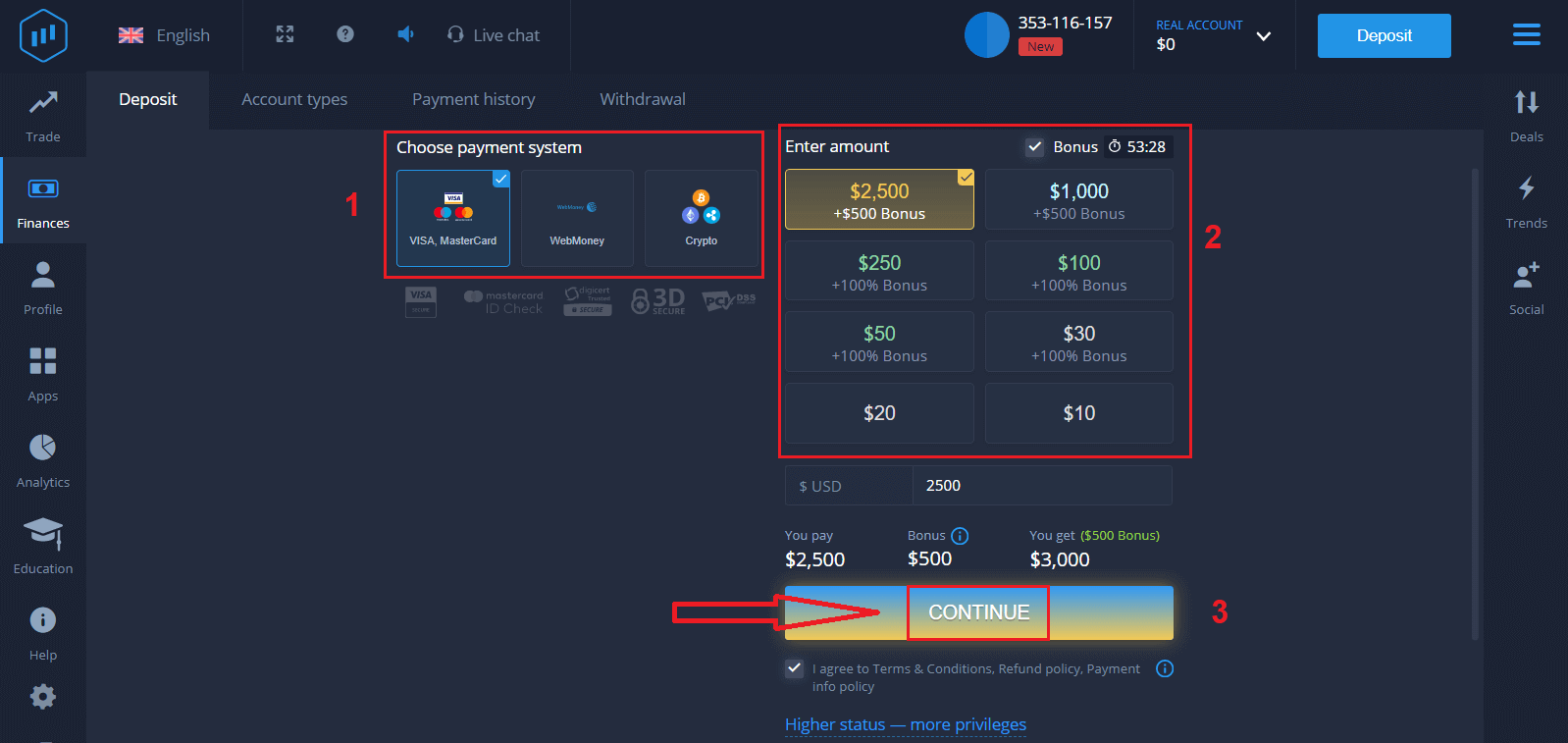
After logging in successfully, you will see the Deposit page as shown below. To start Live trading, you need to make an investment in your account (the minimum deposit is USD 10).
How to make a Deposit in ExpertOption
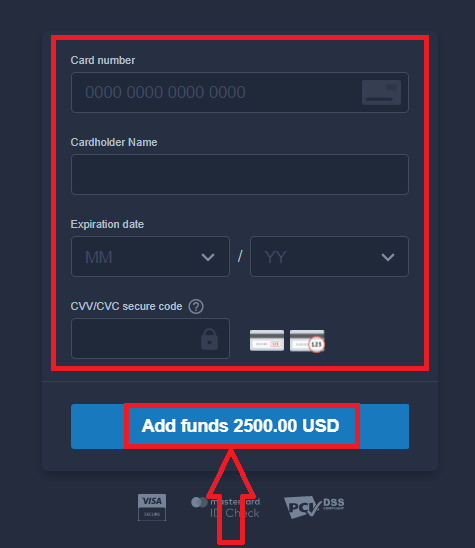
Enter the card data and click "Add funds ..."
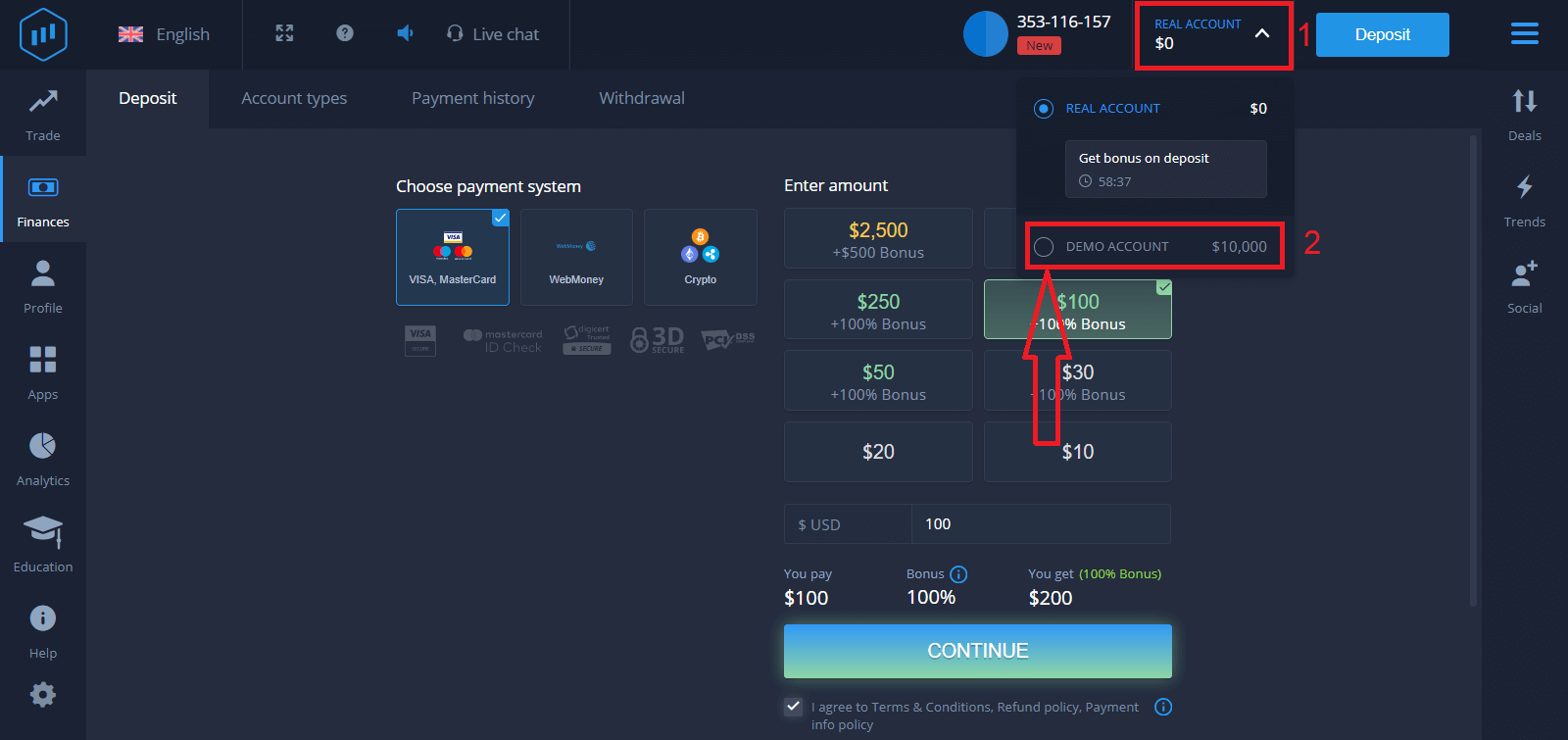
Now you can trade on a real account after depositing successfully.
If you want to use the Demo Account, click "REAL ACCOUNT" and select "DEMO ACCOUNT" to start trading with $10,000 in the Demo Account. A demo account is a tool for you to get familiar with the platform, practice your trading skills on different assets, and try out new mechanics on a real-time chart without risks.
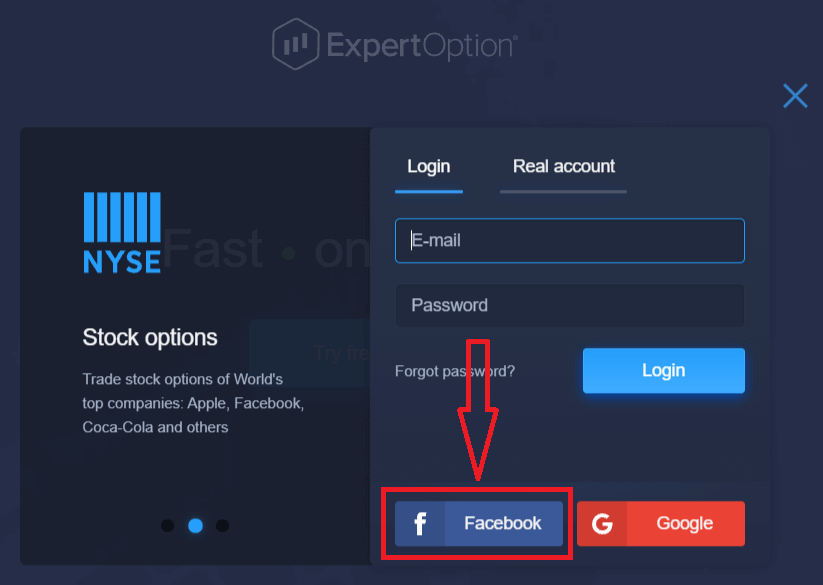
How to Log In to ExpertOption using Facebook
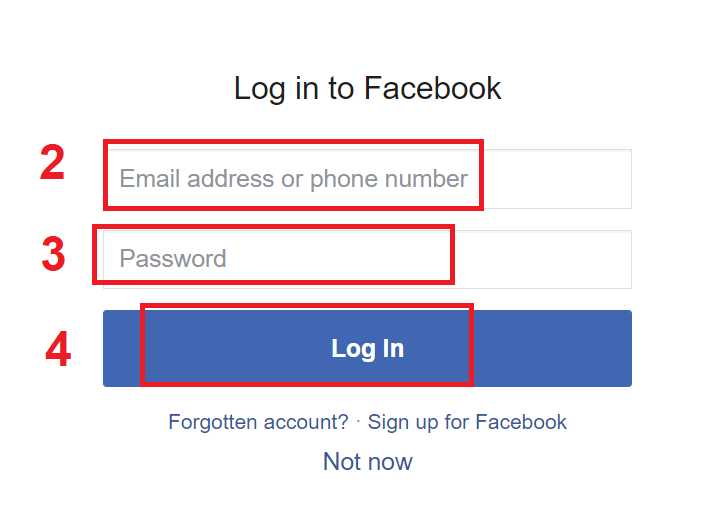
You can also log in to the website using your personal Facebook account by clicking on the Facebook button.1. Click on the Facebook button
2. The Facebook login window will be opened, where you will need to enter your email address that you used to register on Facebook
3. Enter the password from your Facebook account
4. Click on “Log In.”
Once you’ve clicked on the “Log in” button, ExpertOption will request access to: Your name and profile picture, and email address. Click "Continue..."
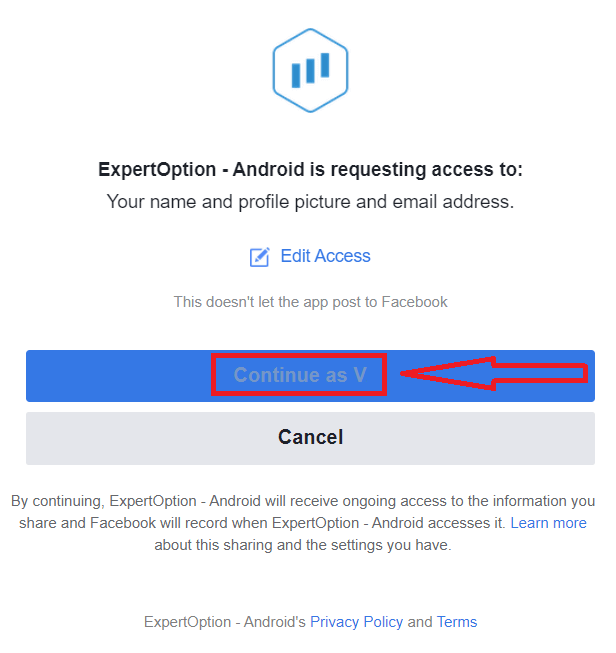
After that, you will be automatically redirected to the ExpertOption platform.
How to Log In to ExpertOption using Google
1. For authorization through your Google account, you need to click on the Google button.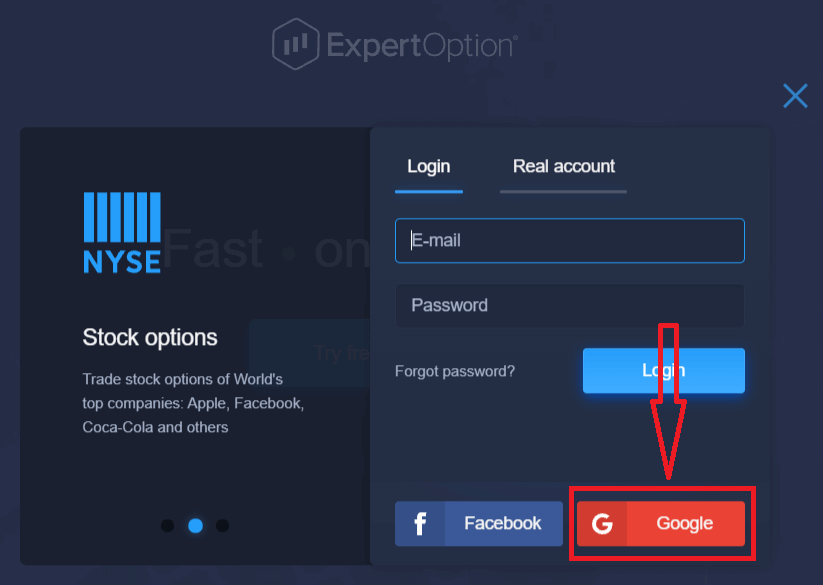
2. Then, in the new window that opens, enter your phone number or email and click “Next”. The system will open a window, and you will be asked for the password for your Google account.
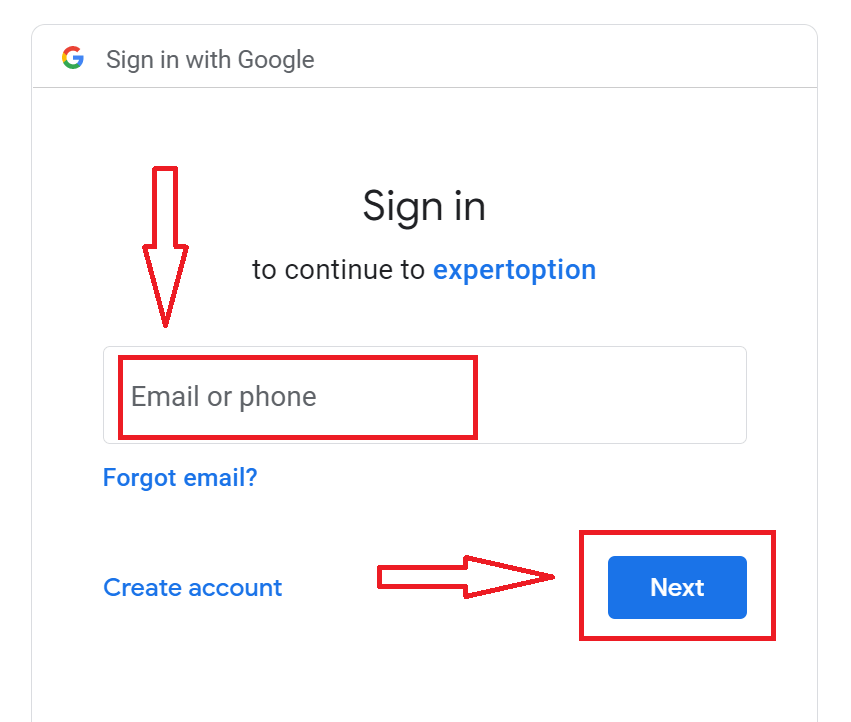
3. Then enter the password for your Google account and click “Next”.
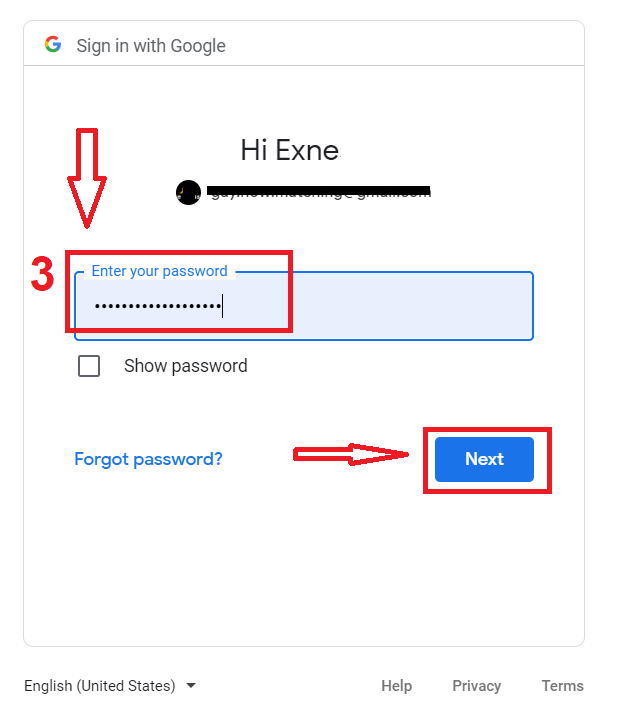
After that, follow the instructions sent from the service to your email address. You will be taken to your personal ExpertOption account.
Recover Your ExpertOption Account Password
Don’t worry if you can’t log into the platform; you might just be entering the wrong password. You can come up with a new one.If you use the web version
To do that, click the "Forgot Password" link.
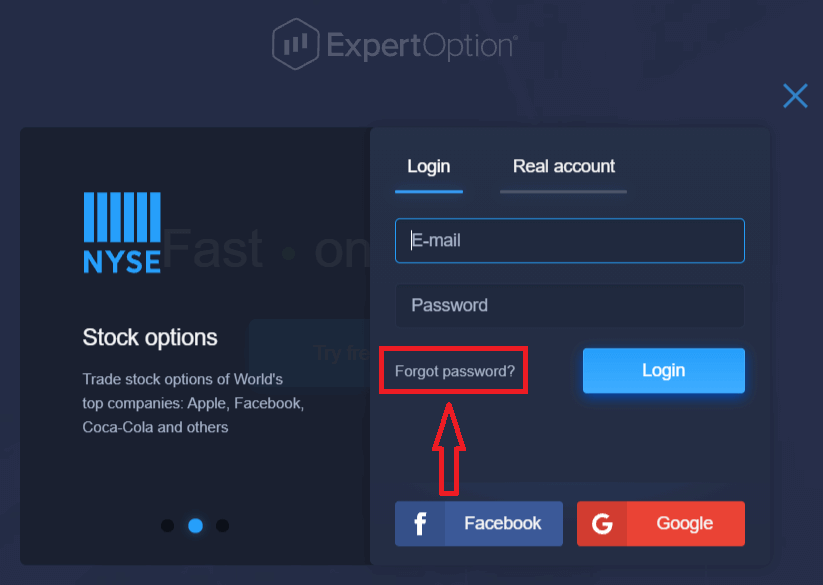
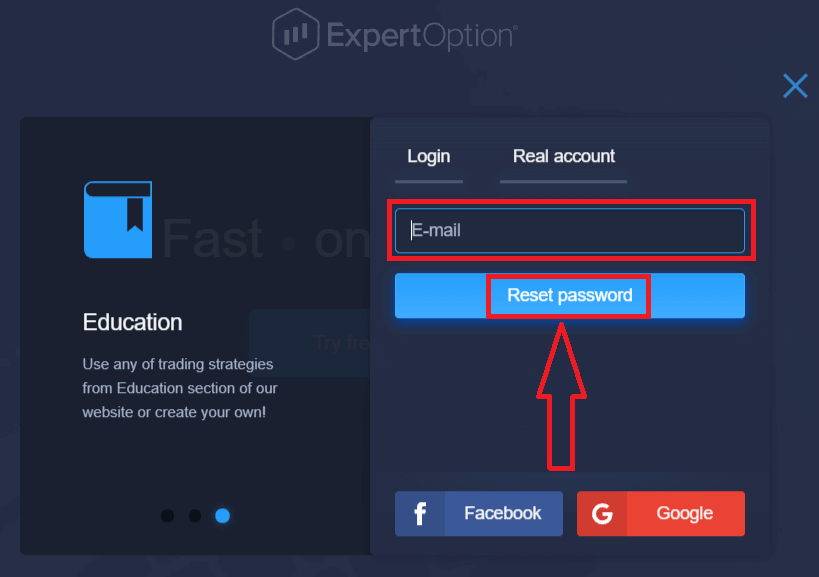
Then, the system will open a new form where you will be requested to restore your password for your ExpertOption account. You need to provide the system with the appropriate email address and click "Reset Password."
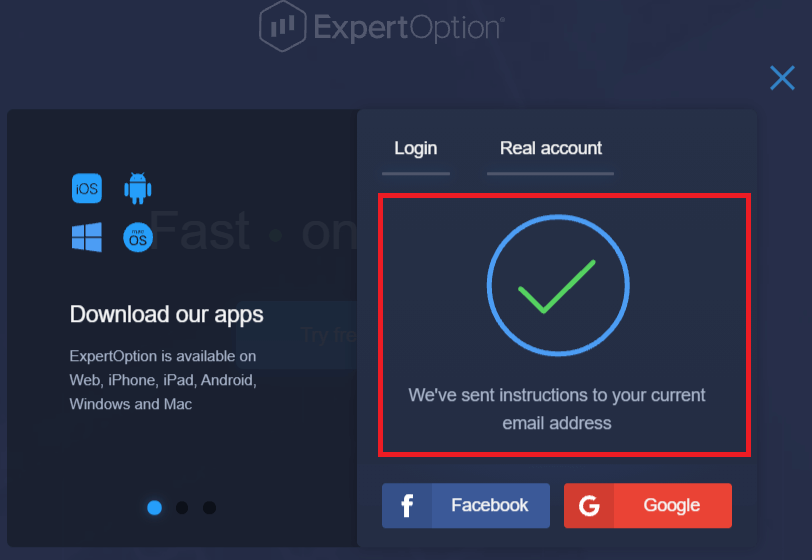
A notification will open that an email has been sent to this email address to reset the password.
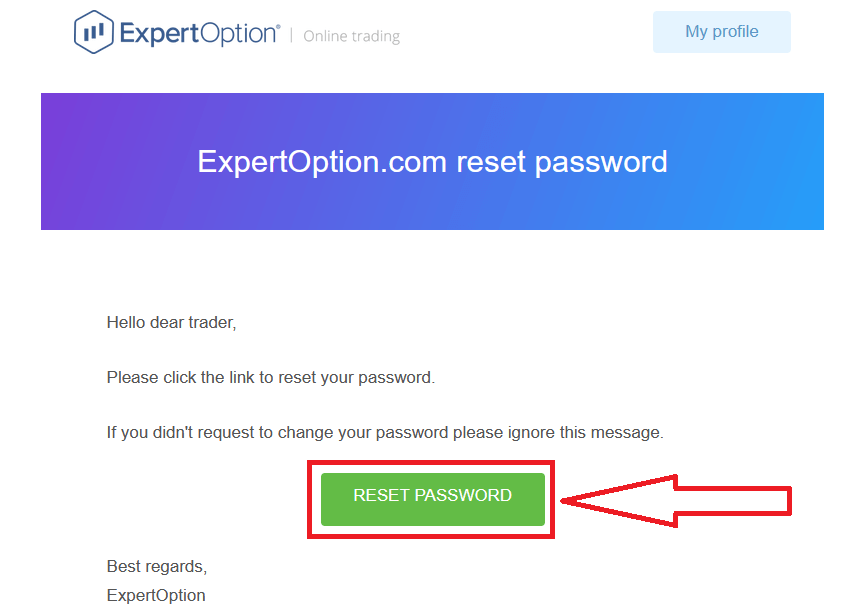
Further in the letter in your email, you will be offered to change your password. Click on the «Reset Password»
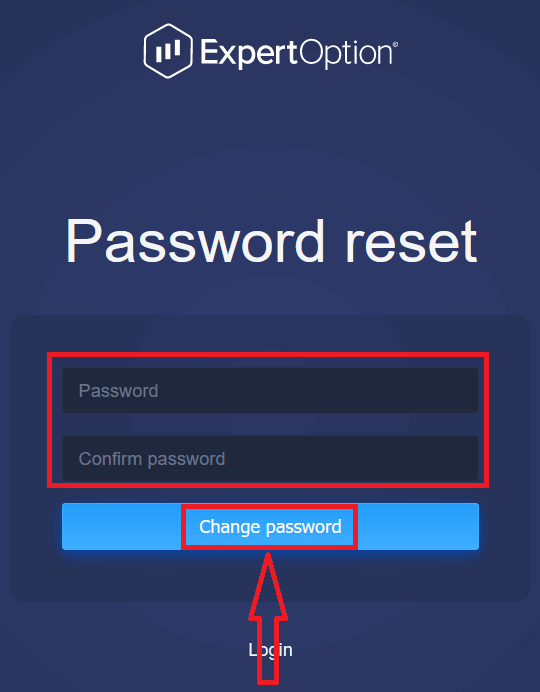
The link from the email will lead you to a special section on the ExpertOption website. Enter your new password here twice and click the "Change password" button.
After entering "Password" and "Confirm password". A message will appear indicating that the password has been changed successfully.
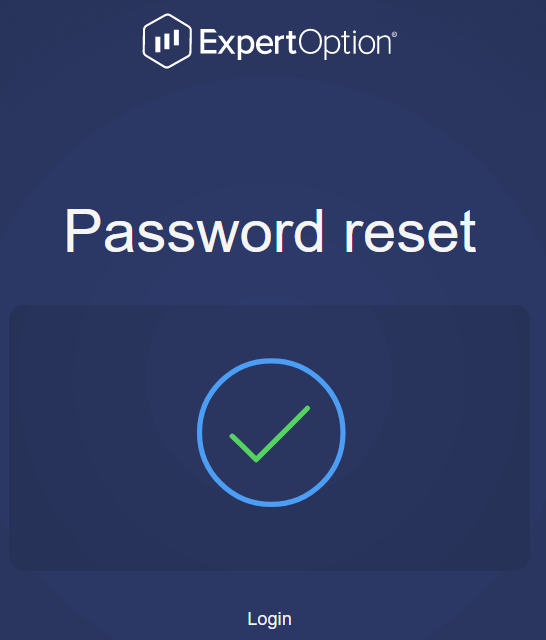
That’s it! Now you can log into the ExpertOption platform using your username and new password.
If you use the mobile application
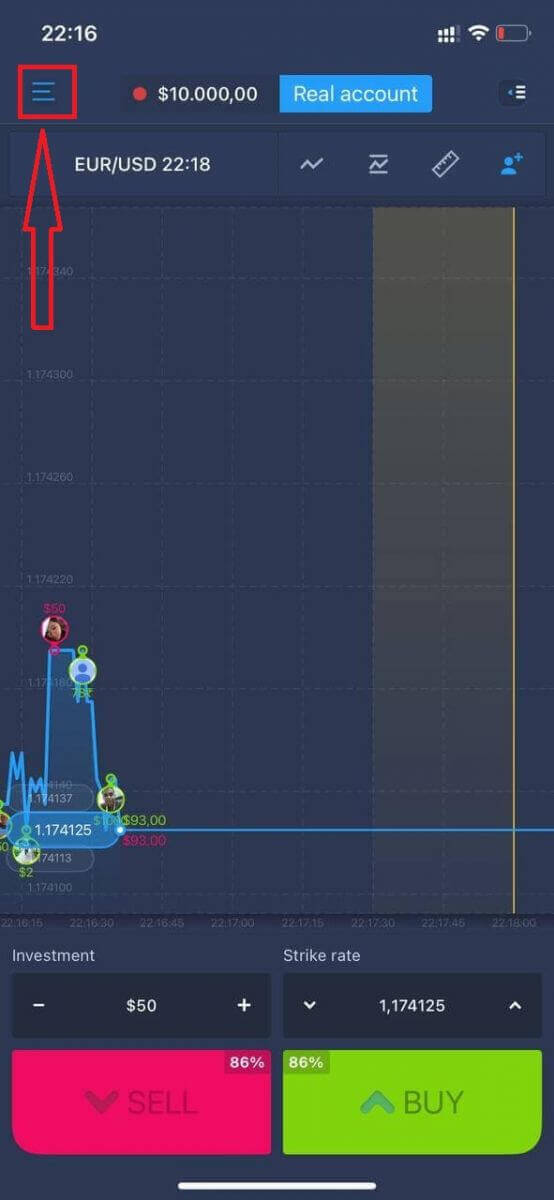
To do that, click the "Menu" icon.
Click "Login."
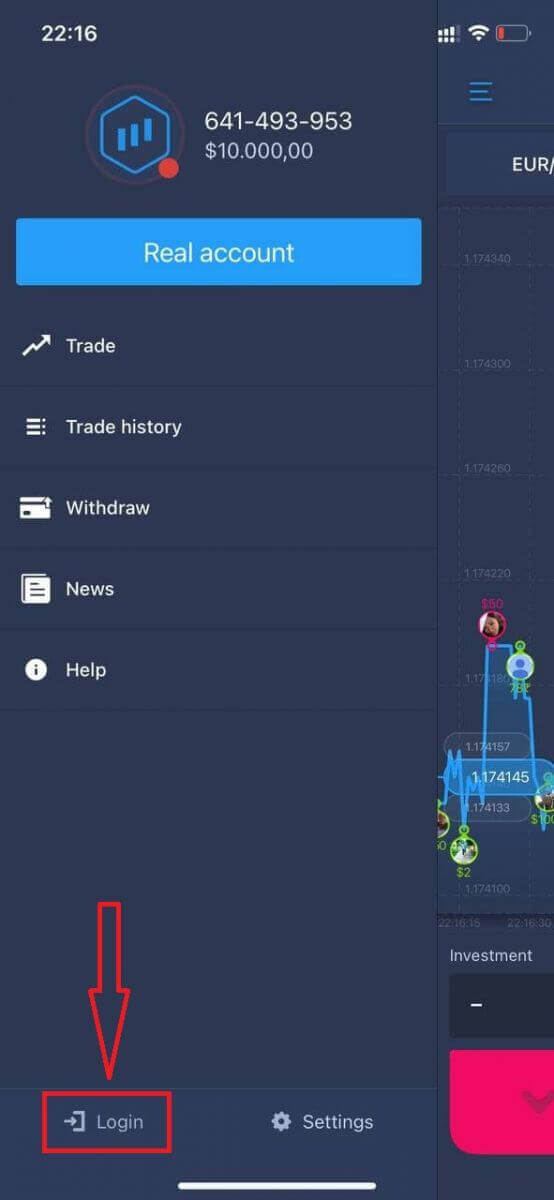
Click on the "Forgot password" link.
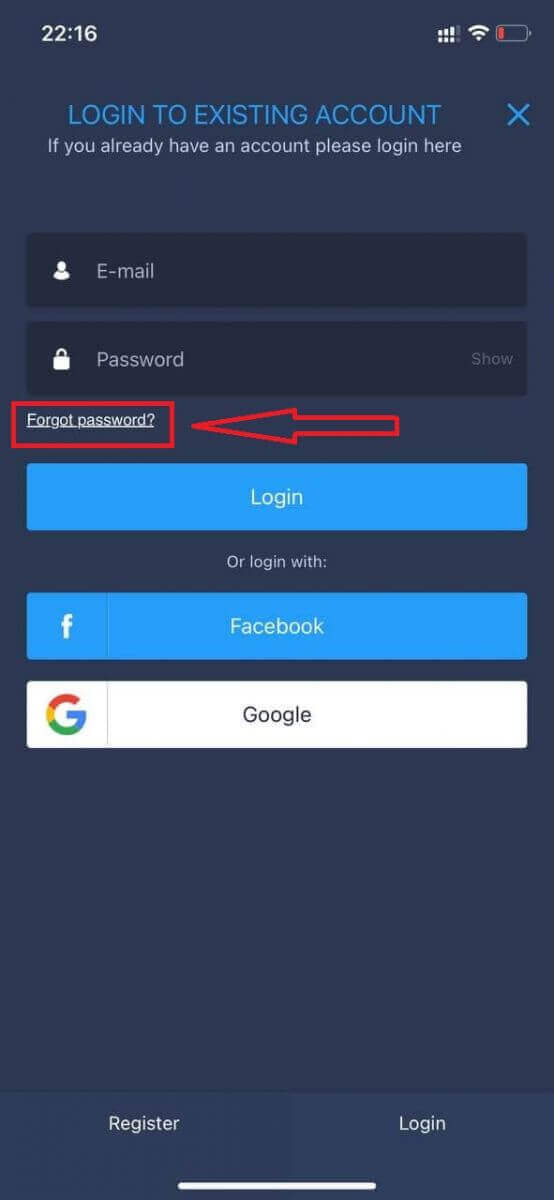
In the new window, enter the email you used during sign-up and click the "Send" button. Then do the same remaining steps as the web app.p
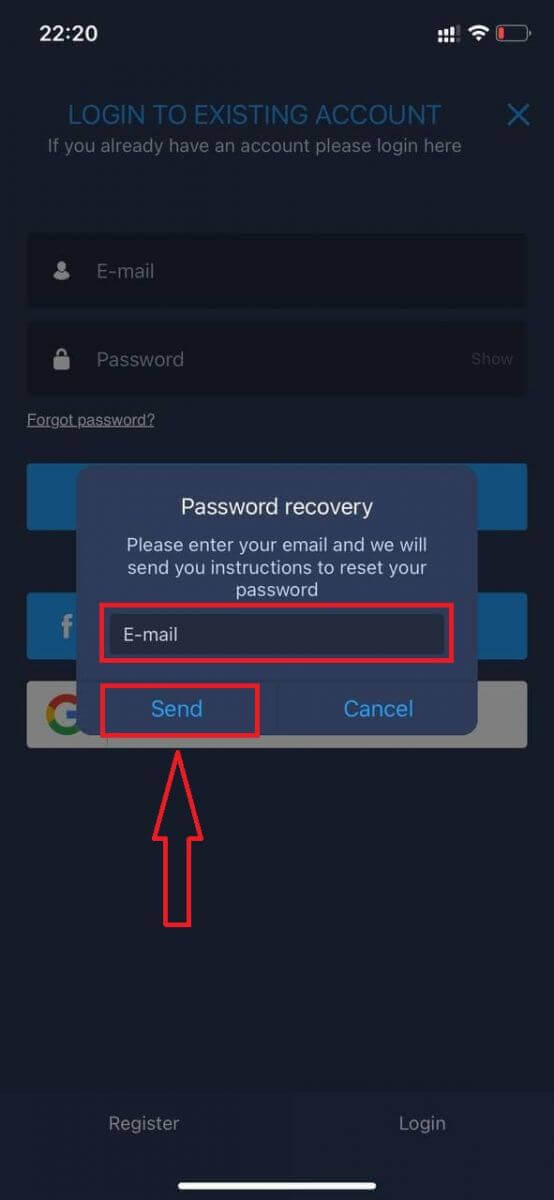
Log In to ExpertOption Mobile Web
If you want to trade on the mobile web version of the ExpertOption trading platform, you can easily do it. Initially, open up your browser on your mobile device. After that, search for “expertoption” and visit the official website of the broker.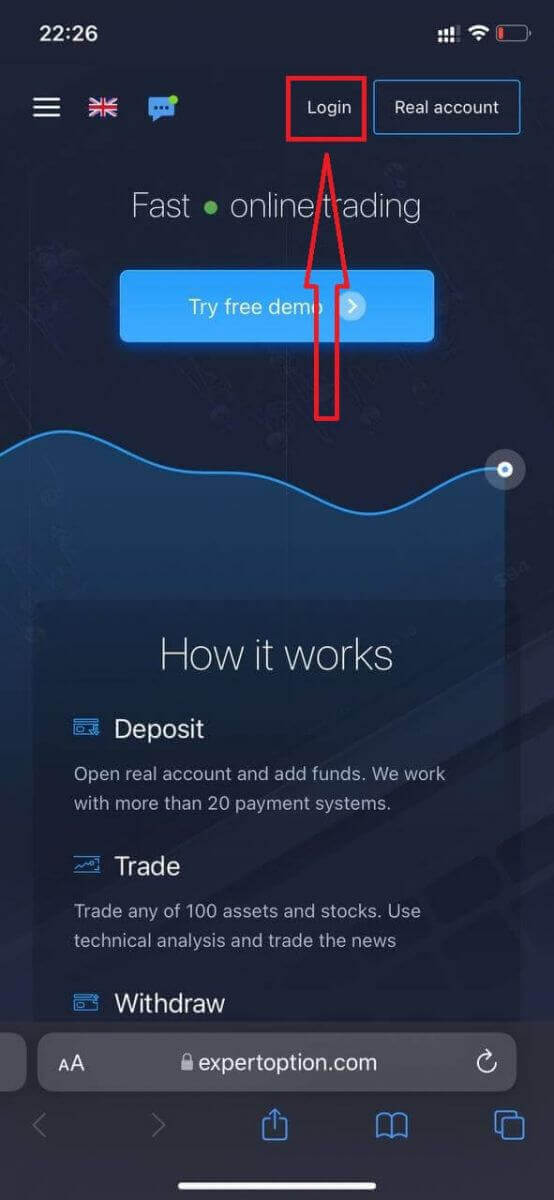
Enter your email and password, and then click on the “Login” button.
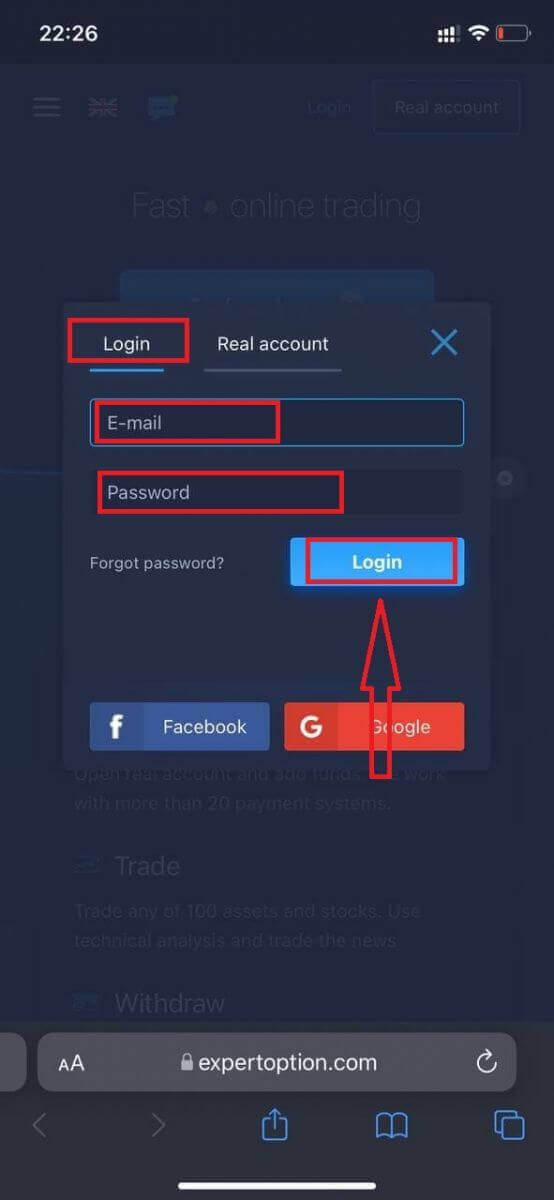
After logging in successfully, you will see the Deposit page. To start Live trading, you need to make an investment in your account (the minimum deposit is USD 10).
How to make a Deposit in ExpertOption
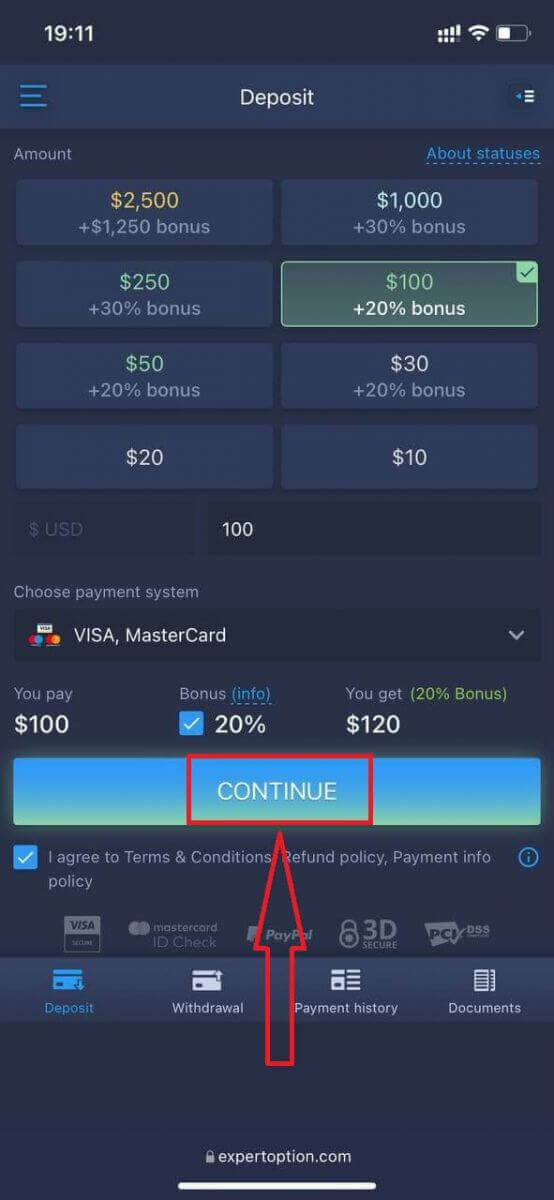
Enter the card data and click "Add funds ..."
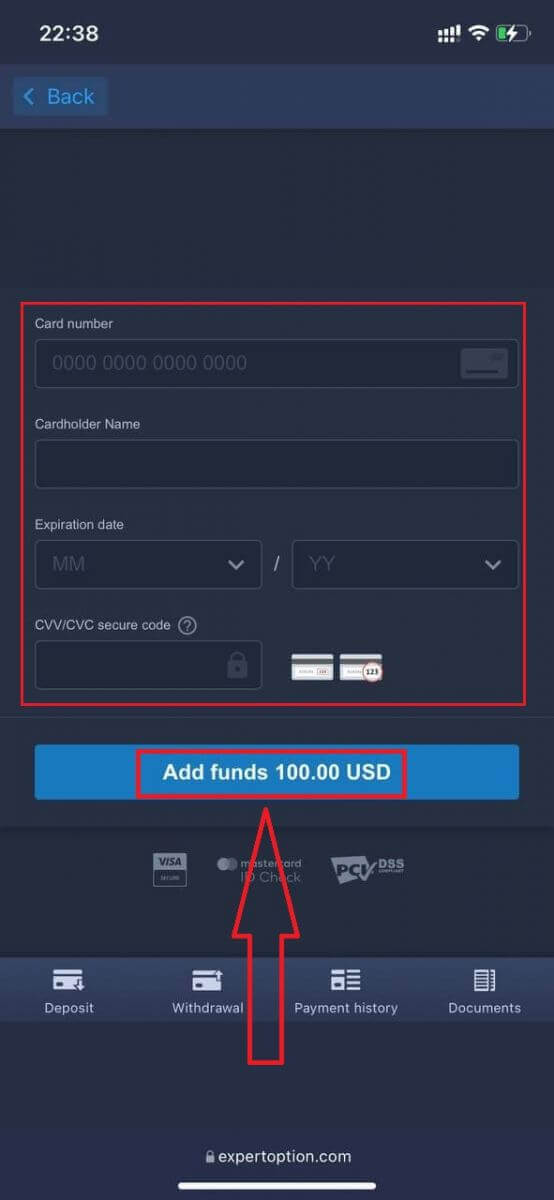
Now you can trade on a real account after depositing successfully.
If you want to use the Demo Account, click the "Menu" icon.
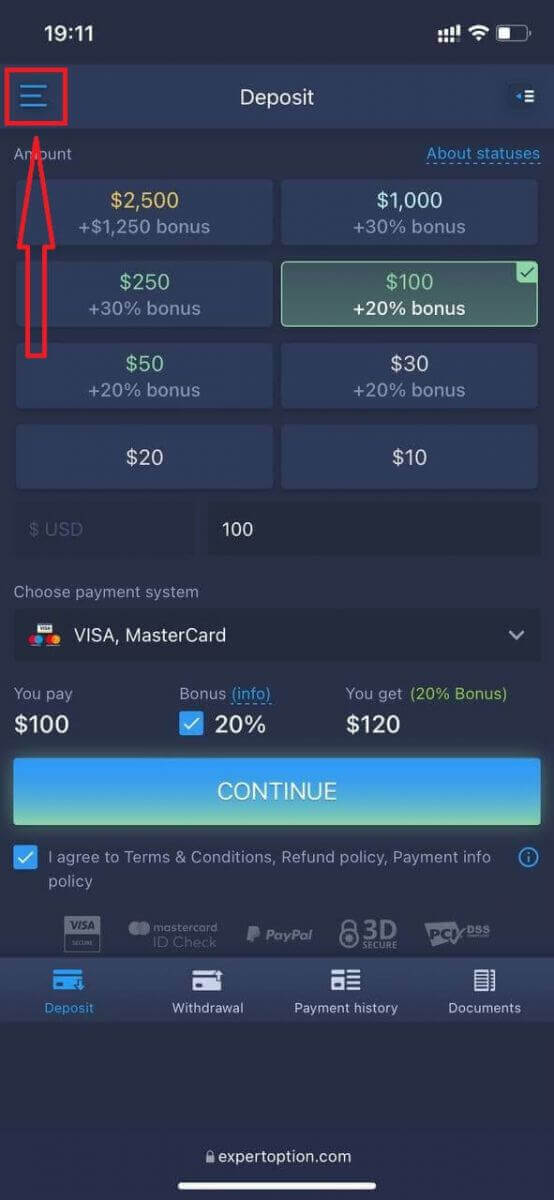
Click "Trade."
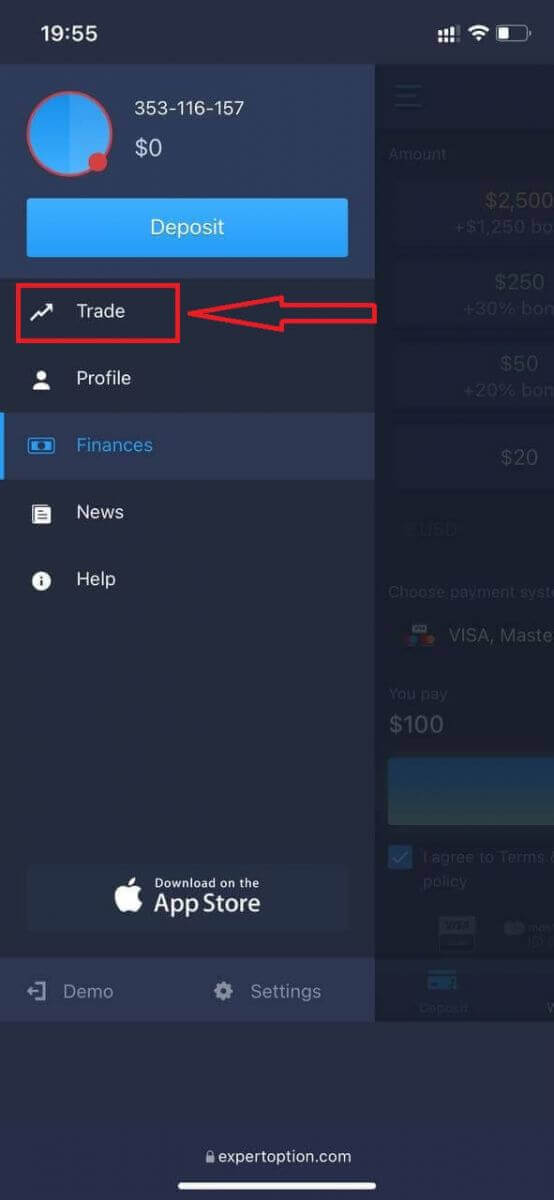
Switch accounts from the Real account to the Demo account.
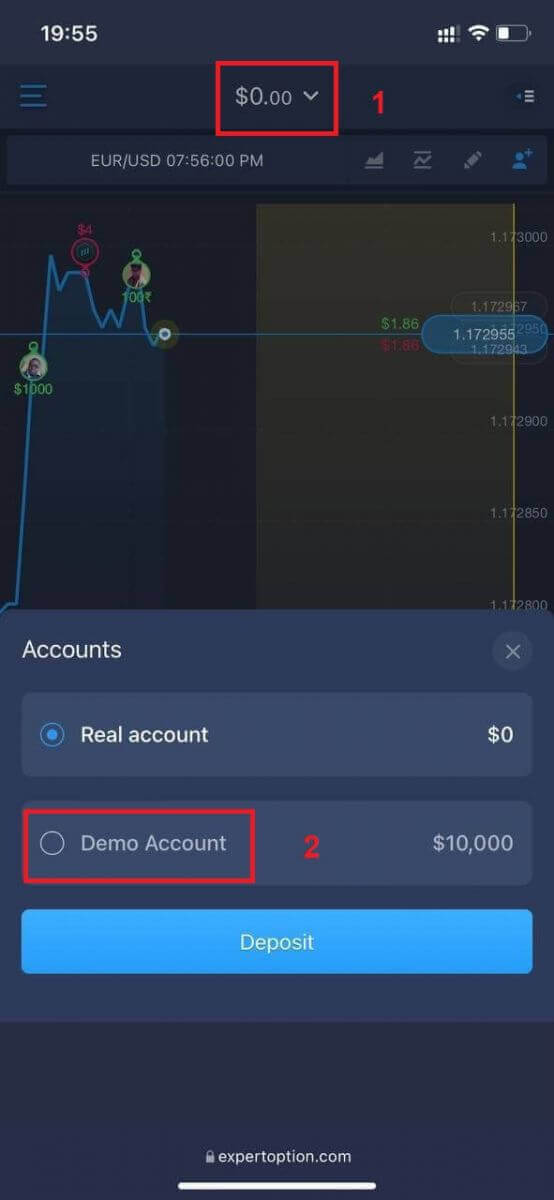
You will have $10,000 in the Demo account.
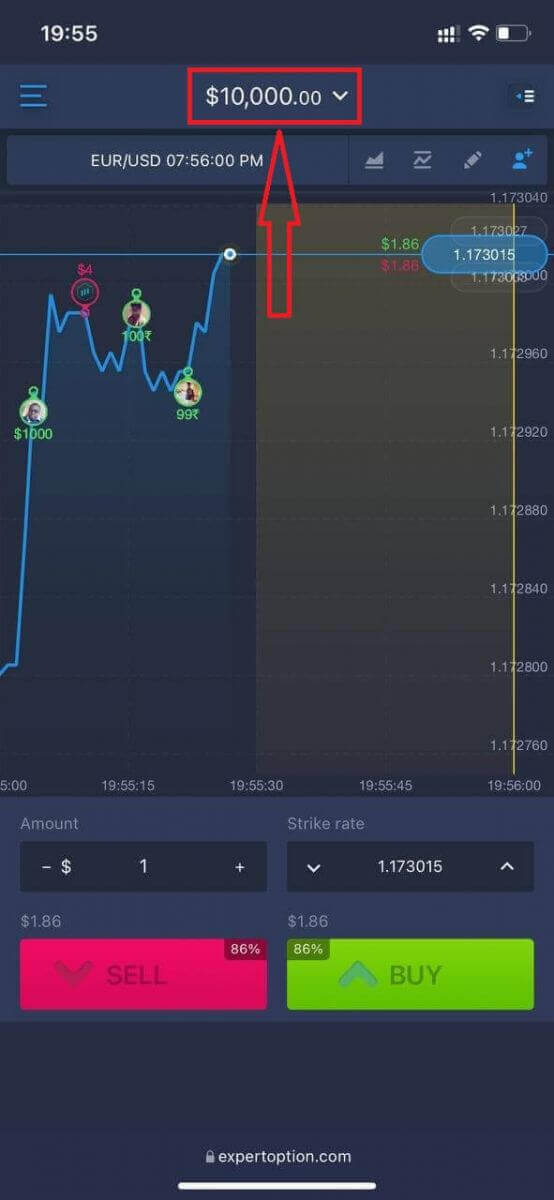
Now you can trade from the mobile web version of the platform. The mobile web version of the trading platform is exactly the same as the regular web version. Consequently, there won’t be any problems with trading and transferring funds.
How to Log In to the ExpertOption iOS App
Logging in on the iOS mobile platform is similar to logging in on the ExpertOption web app. The application can be downloaded through the App Store on your device, or click here. Simply search for “ExpertOption - Mobile Trading” app and click «GET» to install it on your iPhone or iPad.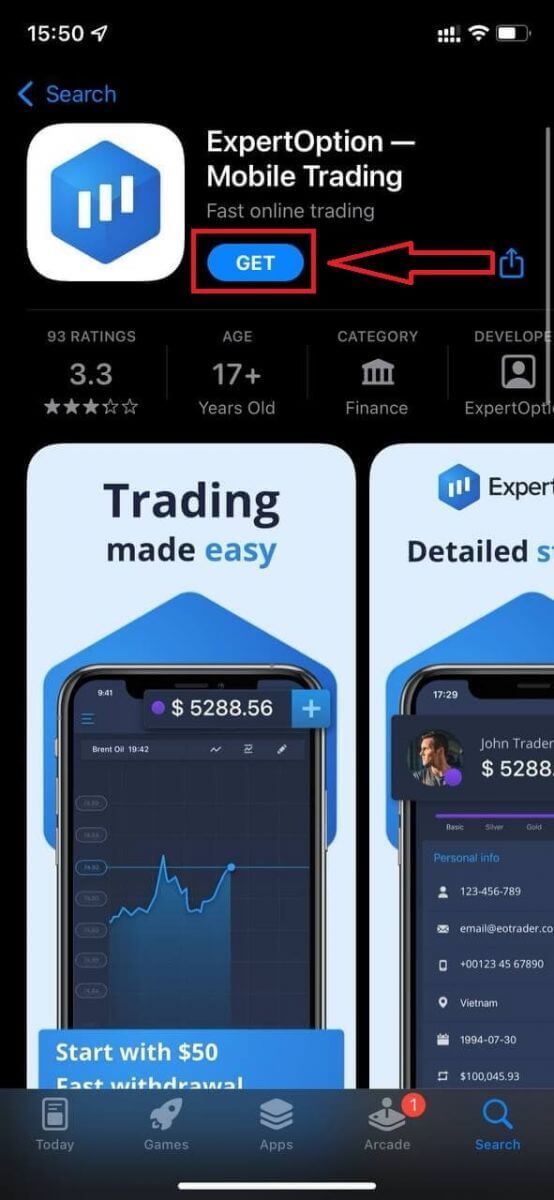
After installation and launching, you may log in to the ExpertOption iOS mobile app by using your email, Facebook, or Google. You just need to choose the "Menu" icon.
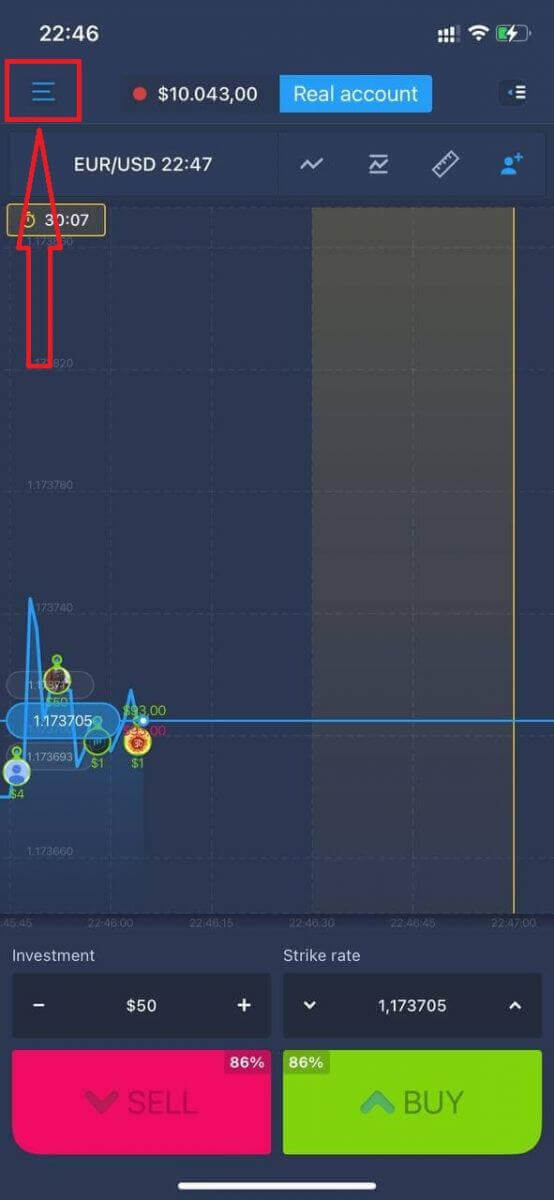
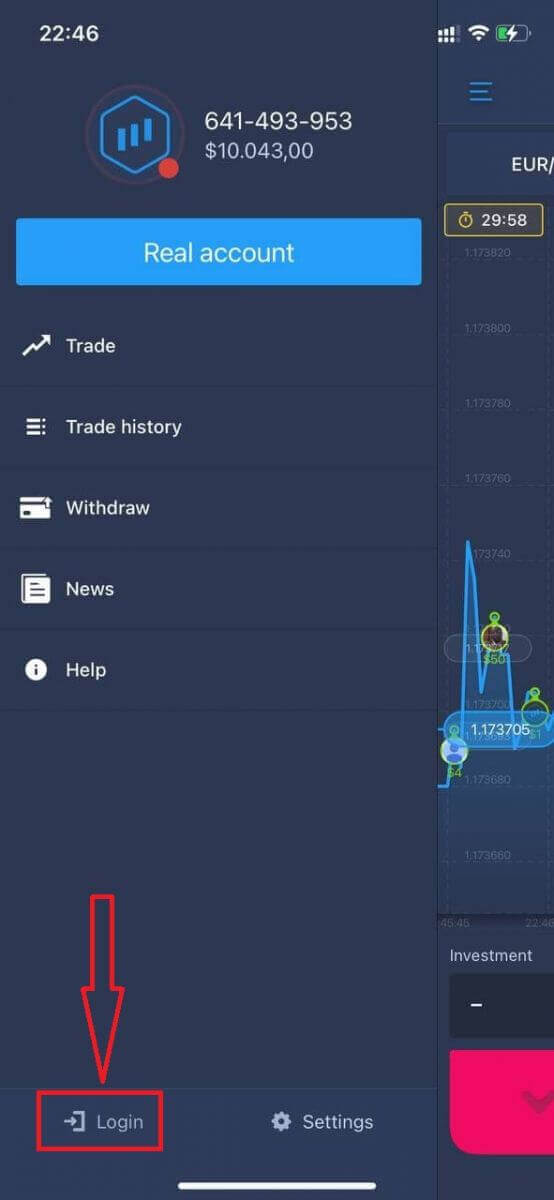
Click "Login."
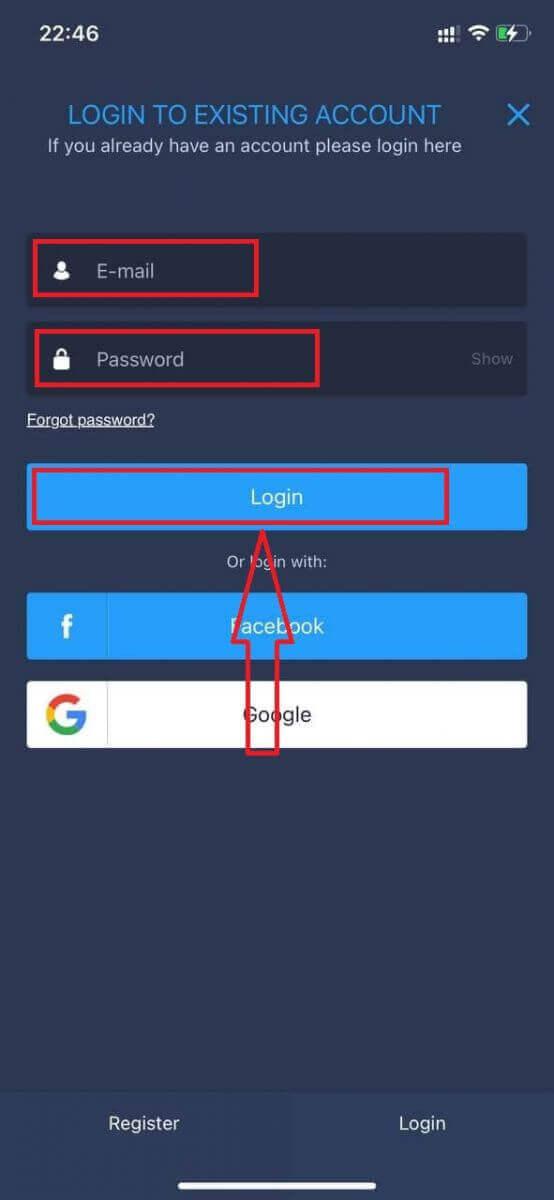
Enter your email and password, and then click on the “Login” button.
How to Log In to the ExpertOption Android App
You have to visit the Google Play store and search for "ExpertOption - Mobile Trading" to find this app, or click here.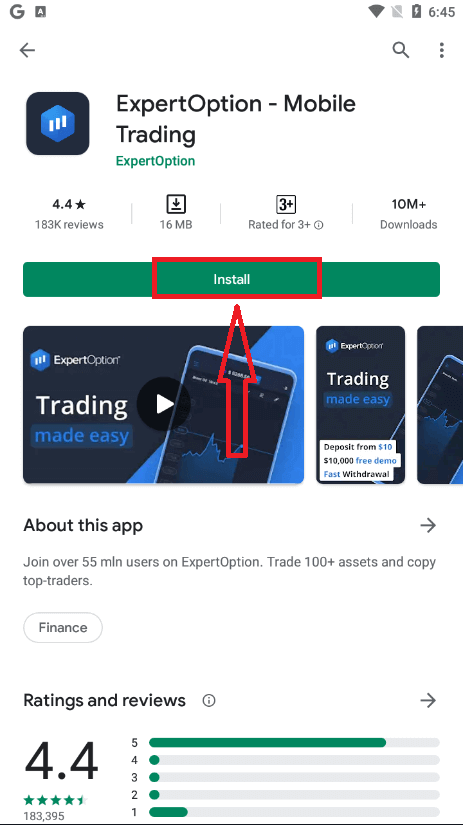
After installation and launching, you may log in to the ExpertOption Android mobile app by using your email, Facebook, or Google account.
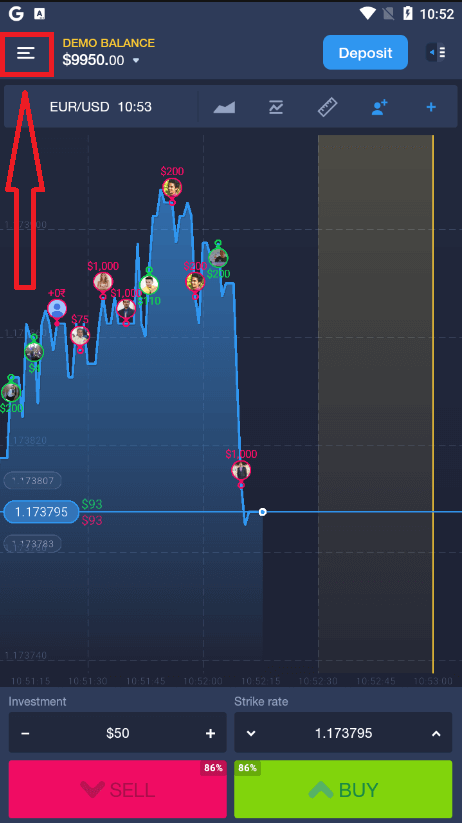
Do the same steps as on an iOS device, choose the "Menu" icon.
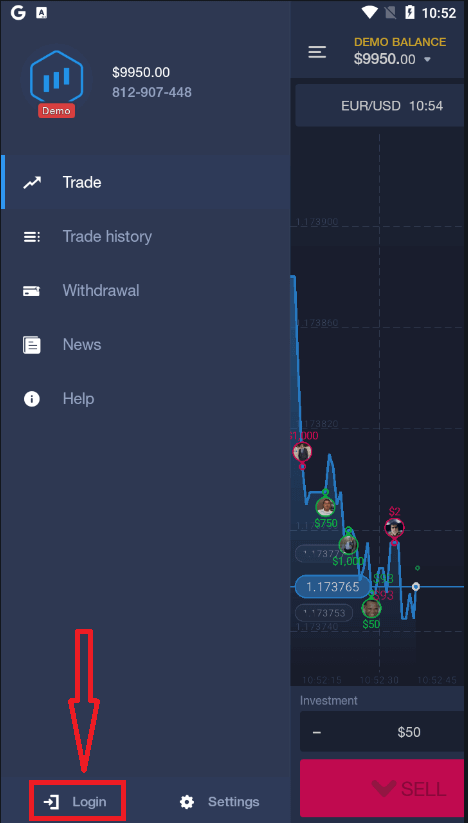
Click "Login."
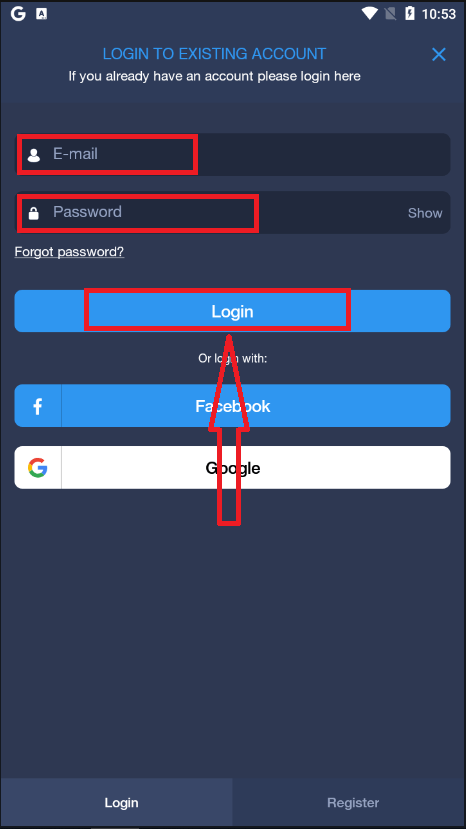
Enter your email and password, and then click on the “Login” button.
How to Trade Binary Options on ExpertOption
Features on ExpertOption
We provide the fastest trading using modern technologies. No delays in order executions and most accurate quotes. Our trading platform is available 24/7, including weekends. ExpertOption customer service is available 24/7. We continually add new financial instruments.
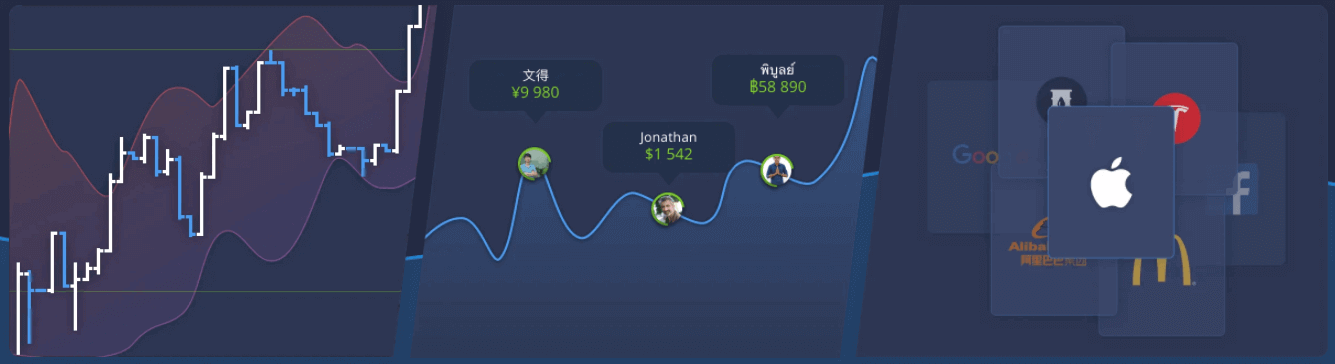
- Technical analysis tools: 4 chart types, 8 indicators, trend lines
- Social trading: watch deals across the globe or trade with your friends
- Over 100 assets, including popular stocks like Apple, Facebook, and McDonald’s
How to Open a Trade on ExpertOption
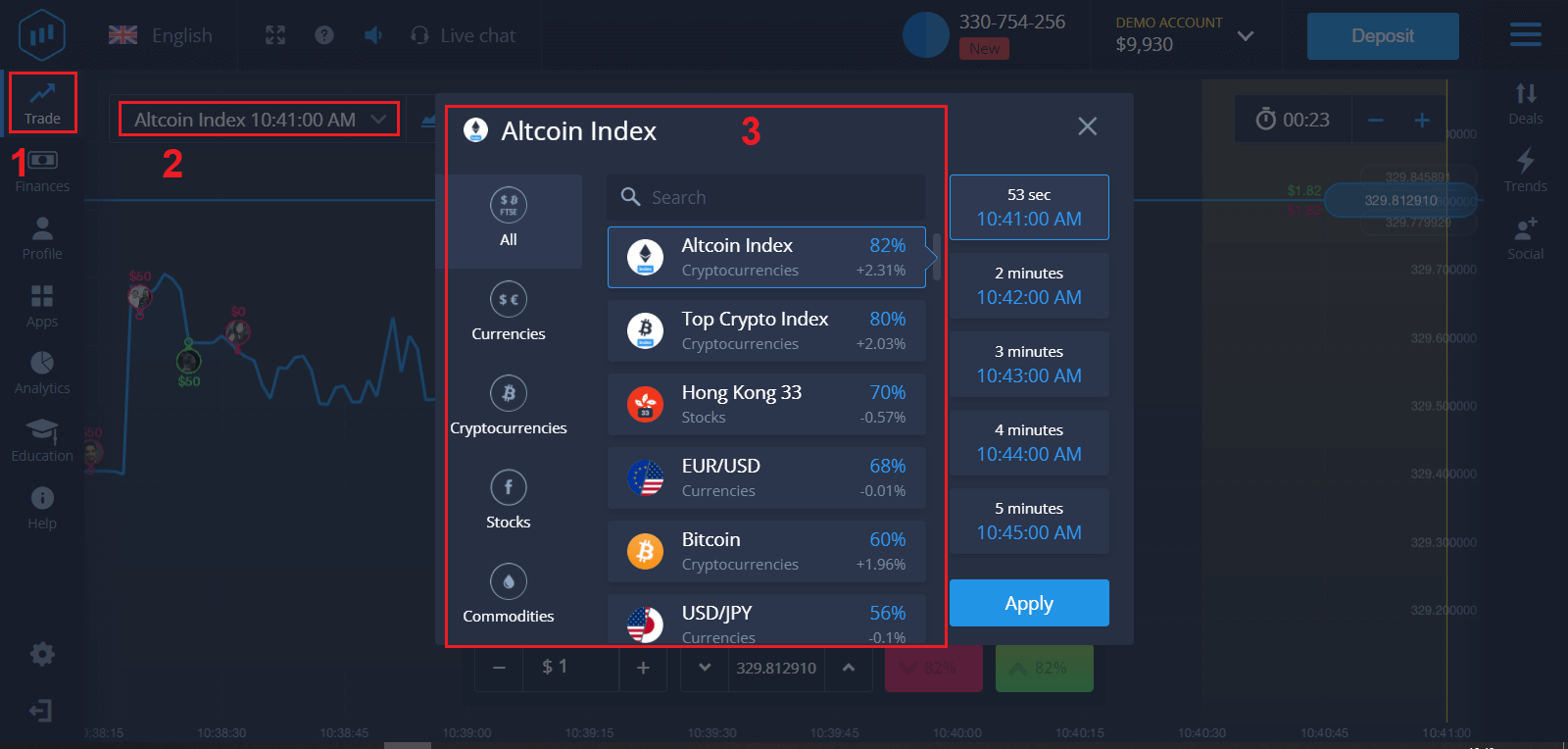
1. Choose an asset for trading
- You can scroll through the list of assets. The assets that are available to you are colored white. Click on the asset to trade on it.
- The percentage determines its profitability. The higher the percentage, the higher your profit in case of success.
All trades close with the profitability that was indicated when they were opened.
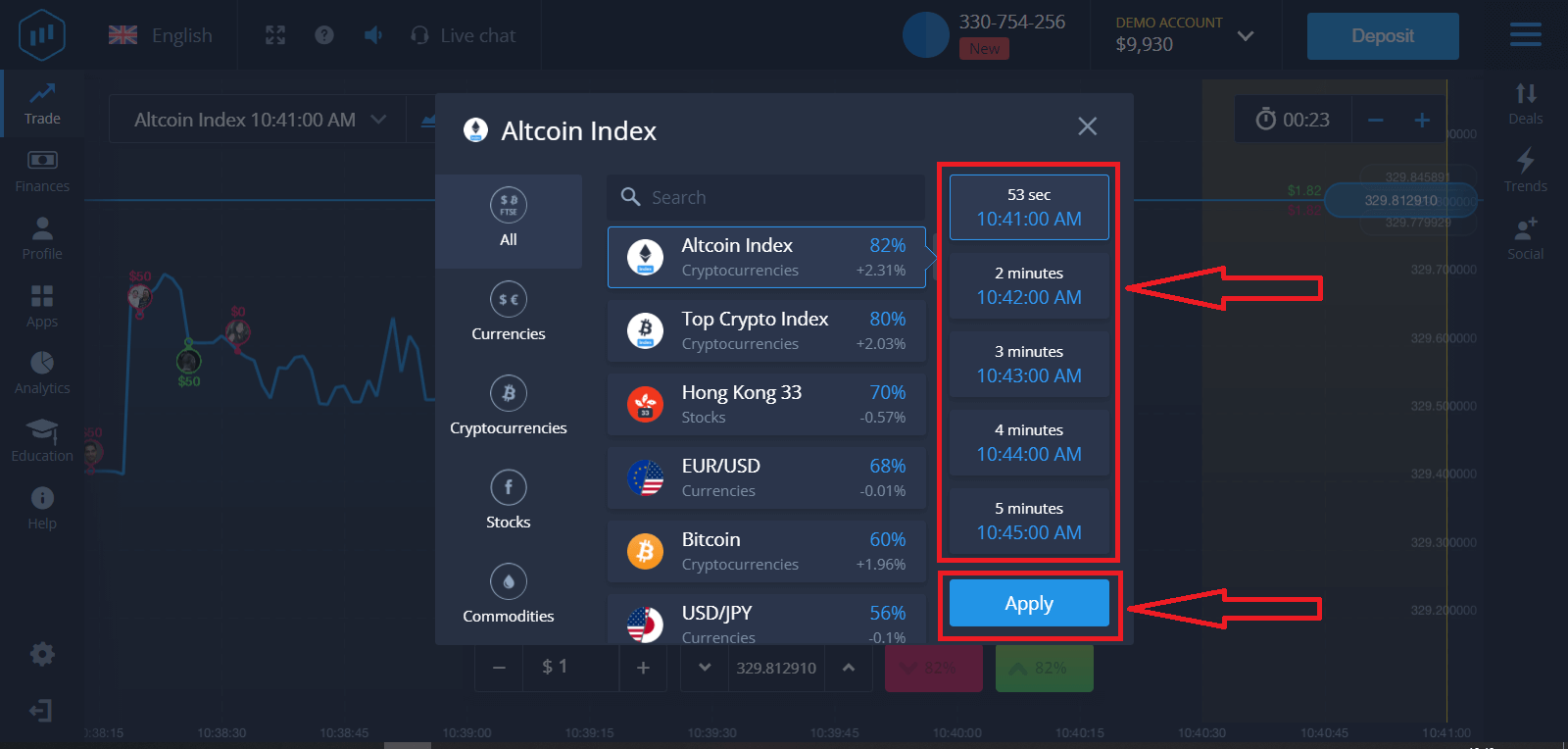
2. Choose an Expiration Time and click the Apply button
The expiration period is the time after which the trade will be considered completed (closed), and the result is automatically summed up.
When concluding a trade with ExpertOption, you independently determine the time of execution of the transaction.
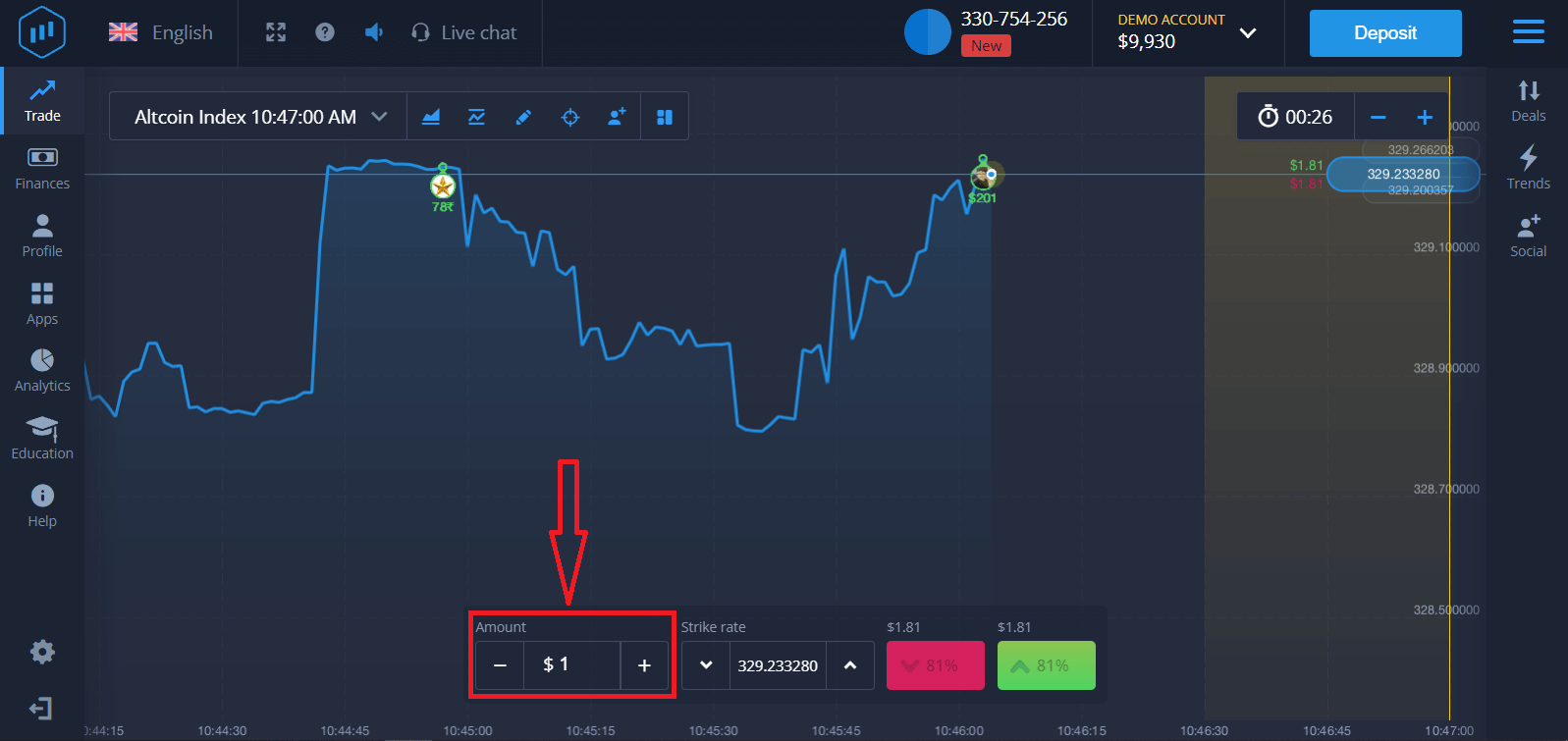
3. Set the amount you’re going to invest
The minimum amount for a trade is $1, the maximum $1,000, or an equivalent in your account currency. We recommend you start with small trades to test the market and get comfortable.
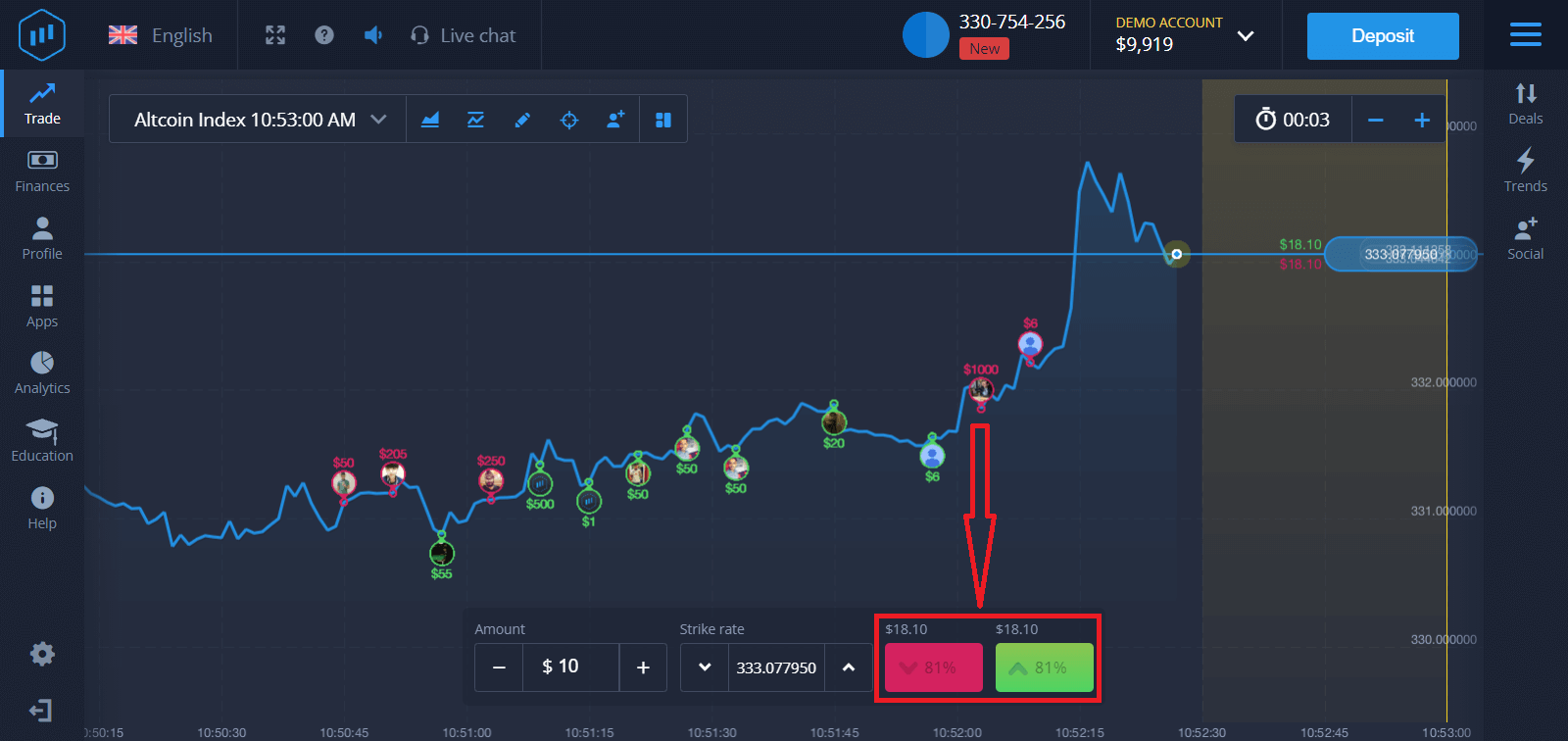
4. Analyze the price movement on the chart and make your forecast
Choose Higher (Green) or Lower (Pink) options depending on your forecast. If you expect the price to go up, press "Higher," and if you think the price is going down, press "Lower."
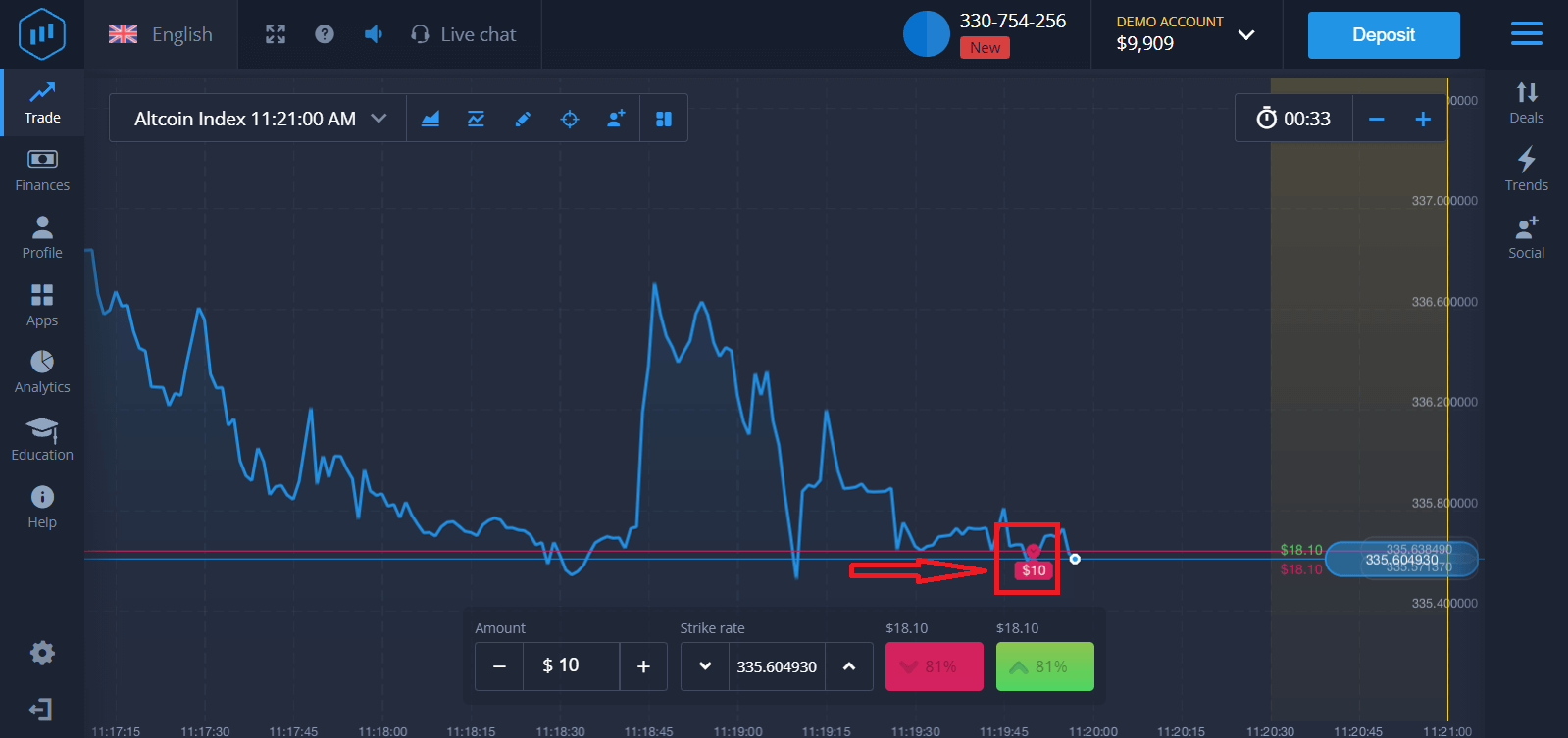
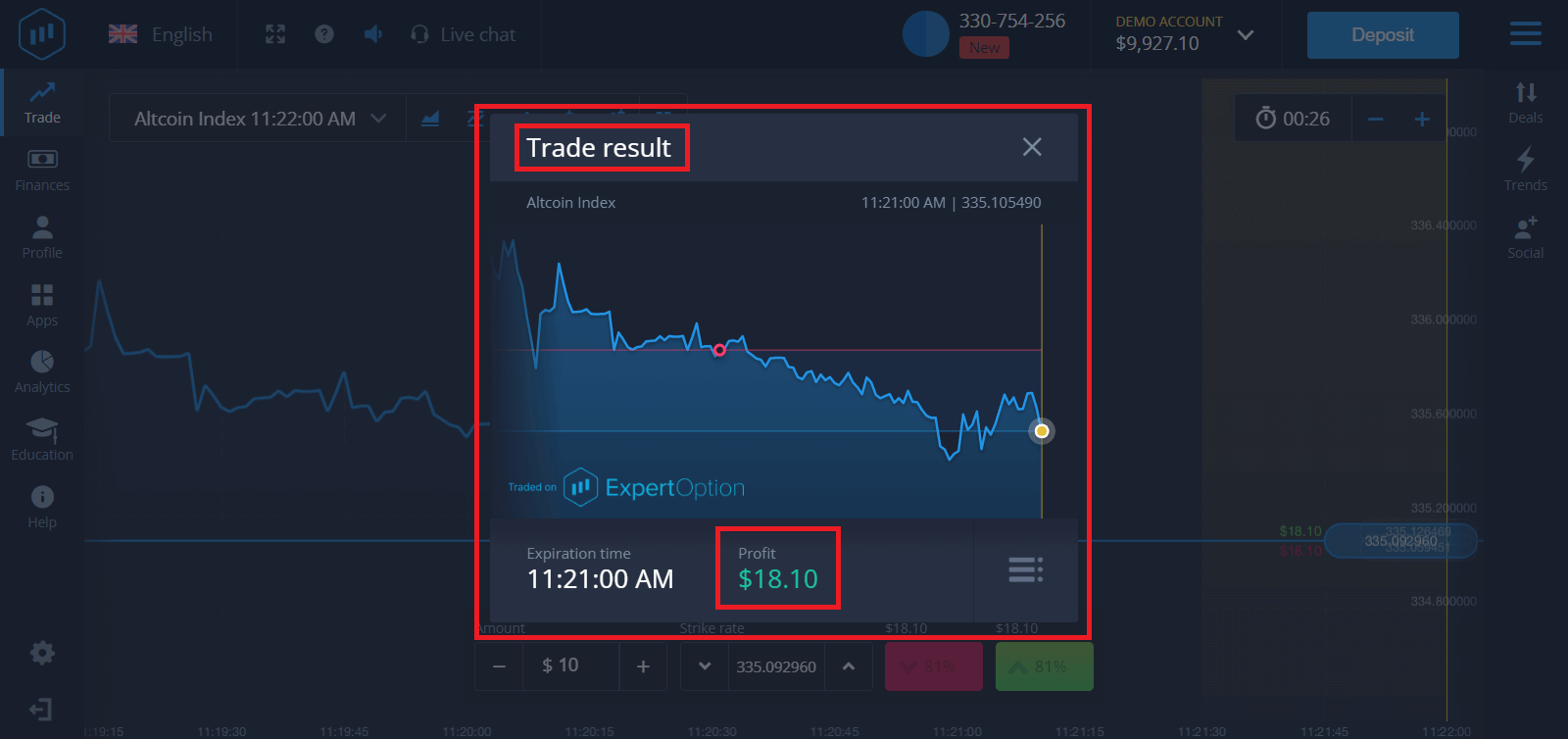
5. Wait for the trade to close to find out whether your forecast was correct. If it were, the amount of your investment plus the profit from the asset would be added to your balance. If your forecast was incorrect, the investment would not be returned.
You can monitor the Progress of your Order on the chart.t
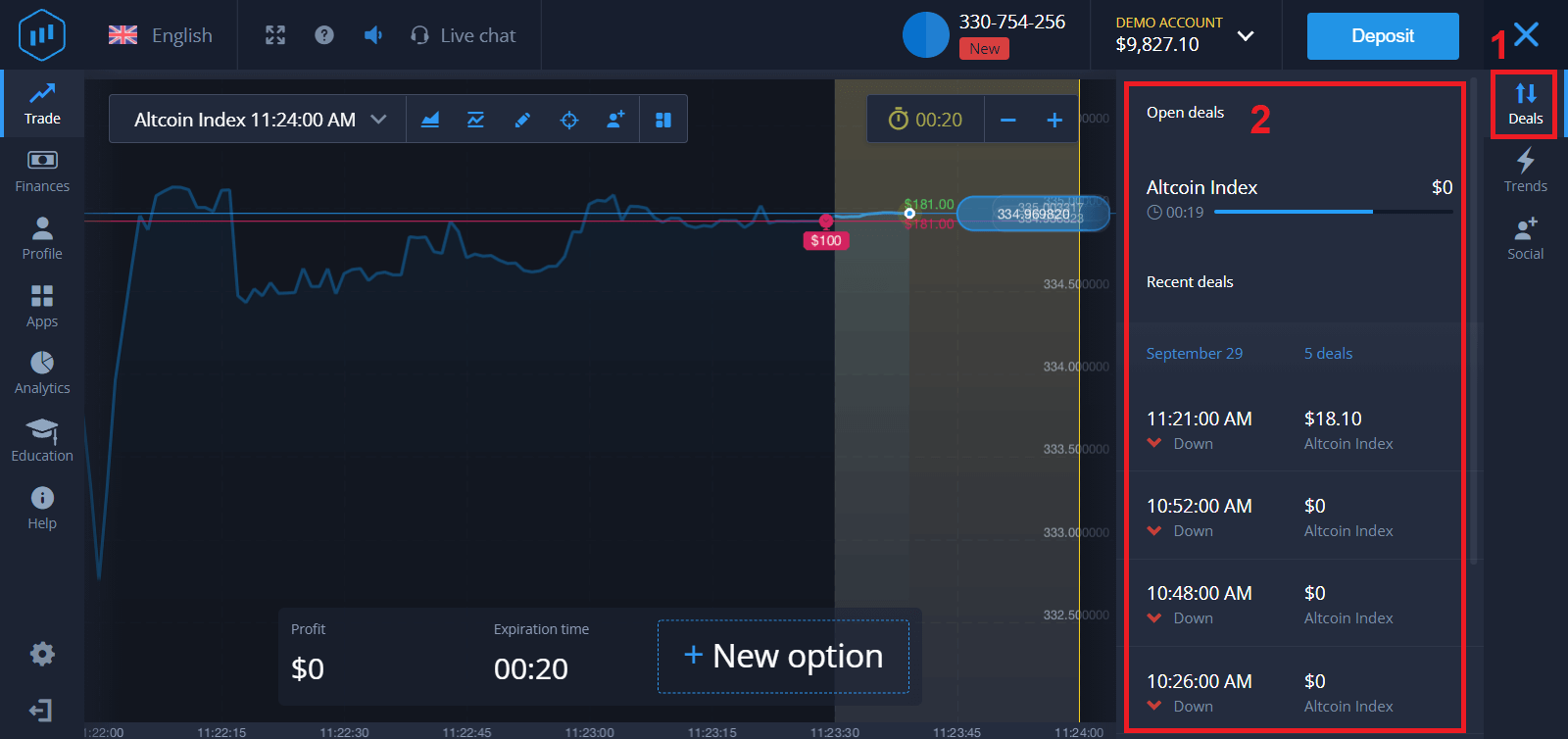
Or in the Deals
You will receive the notification about the result of your trade when it is finished.
Frequently Asked Questions (FAQ)
Is my profit calculated?
Your profit from a trade can be up to 95% of the investment amount. Profit depends on the current situation of the market.
What is the minimum amount that I can invest?
The minimum amount to invest in a single trade is $1.
Are there any commissions upon making transactions with my trading account?
Our company does not take any commissions on your transactions. But such commissions can be taken by the payment systems or a payment aggregator.
Conclusion: Begin Confident Binary Options Trading with ExpertOption
Logging in and starting binary options trading on ExpertOption is fast, straightforward, and secure, empowering you to take immediate control of your trading journey. With clear market analysis, disciplined strategy, and effective risk management, you can leverage ExpertOption’s robust platform to trade binary options confidently and efficiently.
Take your first step into the trading world today—log in and start trading binary options with ExpertOption to pursue your financial goals with confidence.