Open a Demo Account on ExpertOption: Quick Setup Steps
Writen By

Online Trading Platform Researcher and Guide Writer
Researches broker platforms and trading account Systems.
Want to test trades and learn platform features without risking real money? A demo account lets you practice order placement, explore charts and indicators, and trial strategies with virtual funds before you consider funding a live account. It’s the safest way to learn asset selection, experiment with different expirations and order sizes, and get comfortable with platform tools on both desktop and mobile. Familiarity with the demo workflow reduces setup mistakes and helps you decide which account type and risk parameters suit your goals.
This walkthrough shows how to open and access a demo account on ExpertOption, how demo balances and session settings work, and what limitations to expect compared with live trading. It also highlights quick troubleshooting steps and when you’ll need to complete verification or make a deposit to move from practice to a funded account. Follow the steps to start practicing reliably and learn how to transition responsibly when you’re ready.
This walkthrough shows how to open and access a demo account on ExpertOption, how demo balances and session settings work, and what limitations to expect compared with live trading. It also highlights quick troubleshooting steps and when you’ll need to complete verification or make a deposit to move from practice to a funded account. Follow the steps to start practicing reliably and learn how to transition responsibly when you’re ready.
Start the ExpertOption Trading in 1 Click
Registration on the platform is simple: Just a few clicks are required. To open the trading interface in one click, click on the “Try free demo” button.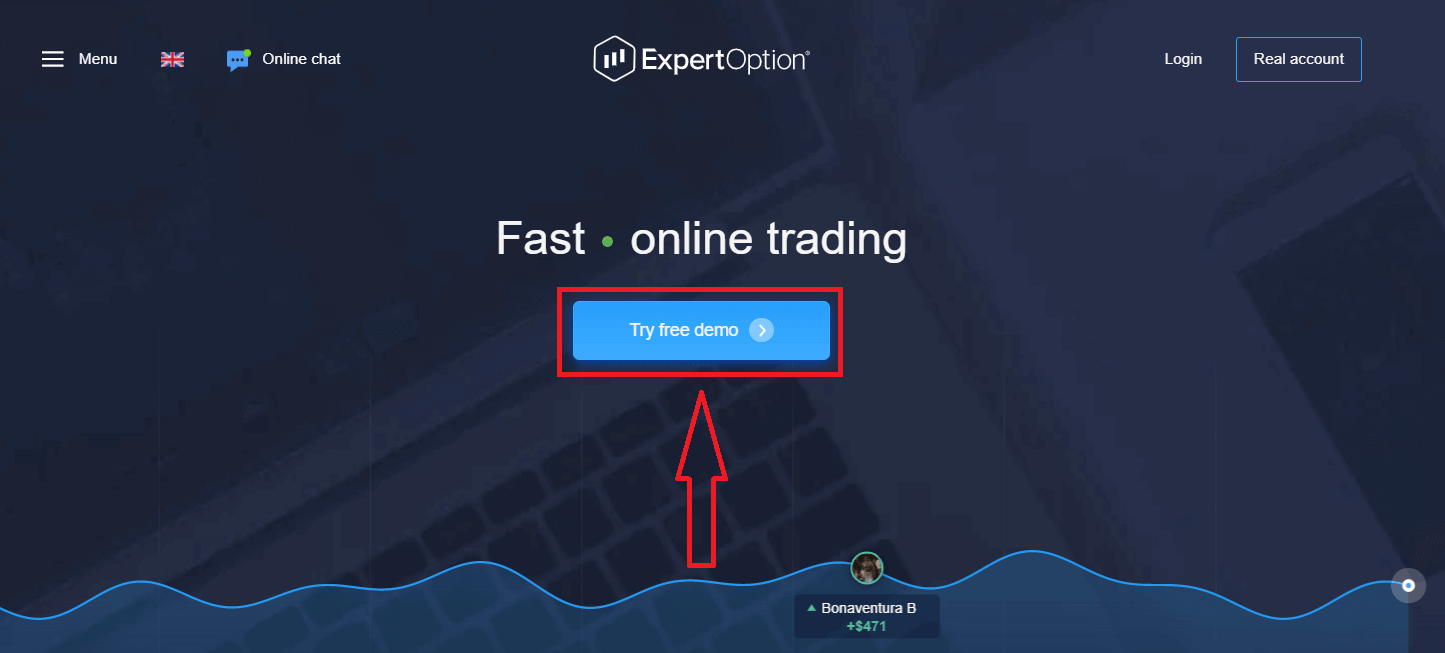
This will take you to the Demo trading page to start trading with $10,000 in a Demo account.
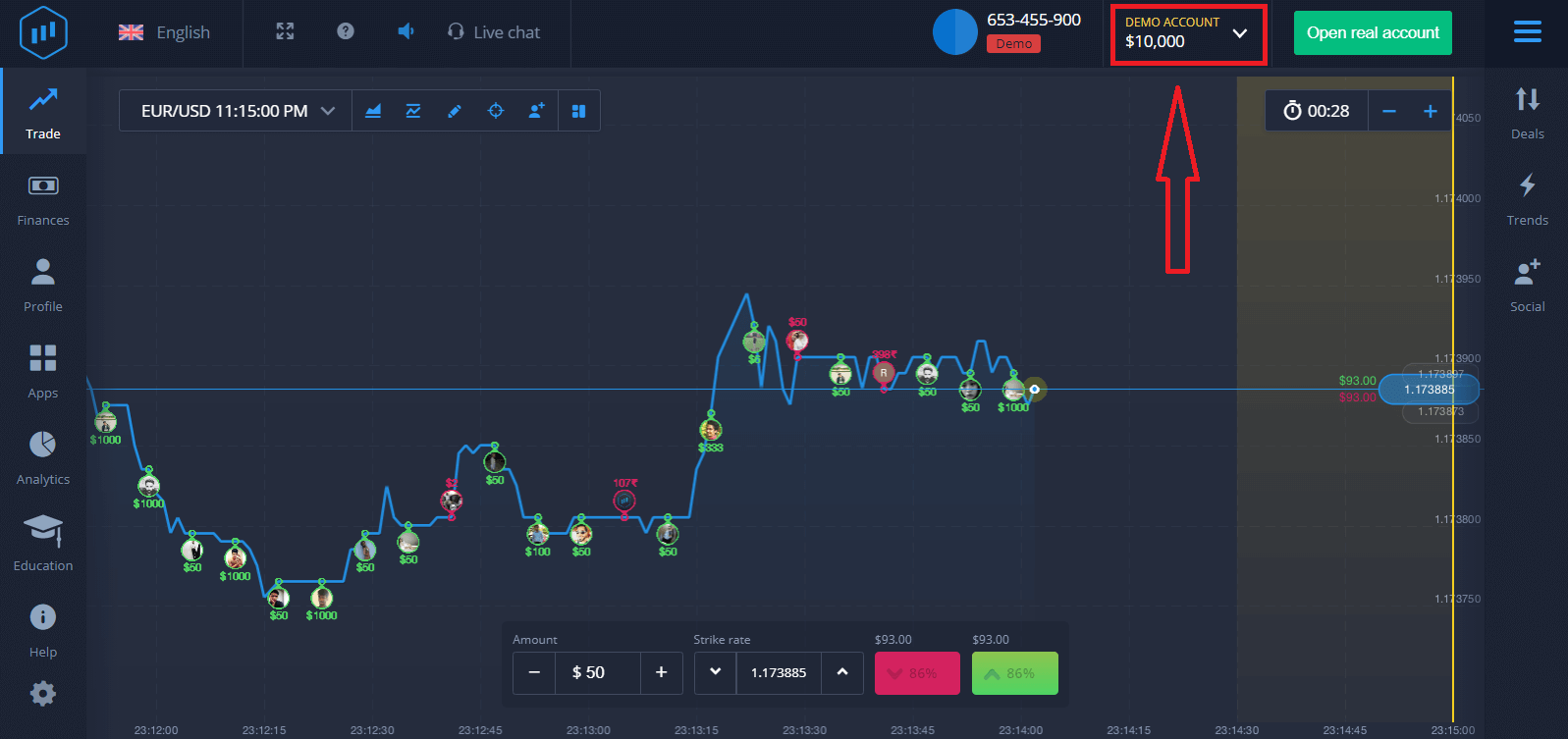
In order to continue using the account, save trading results and can trade on a real account. Click "Open real account" to create a ExpertOption account.
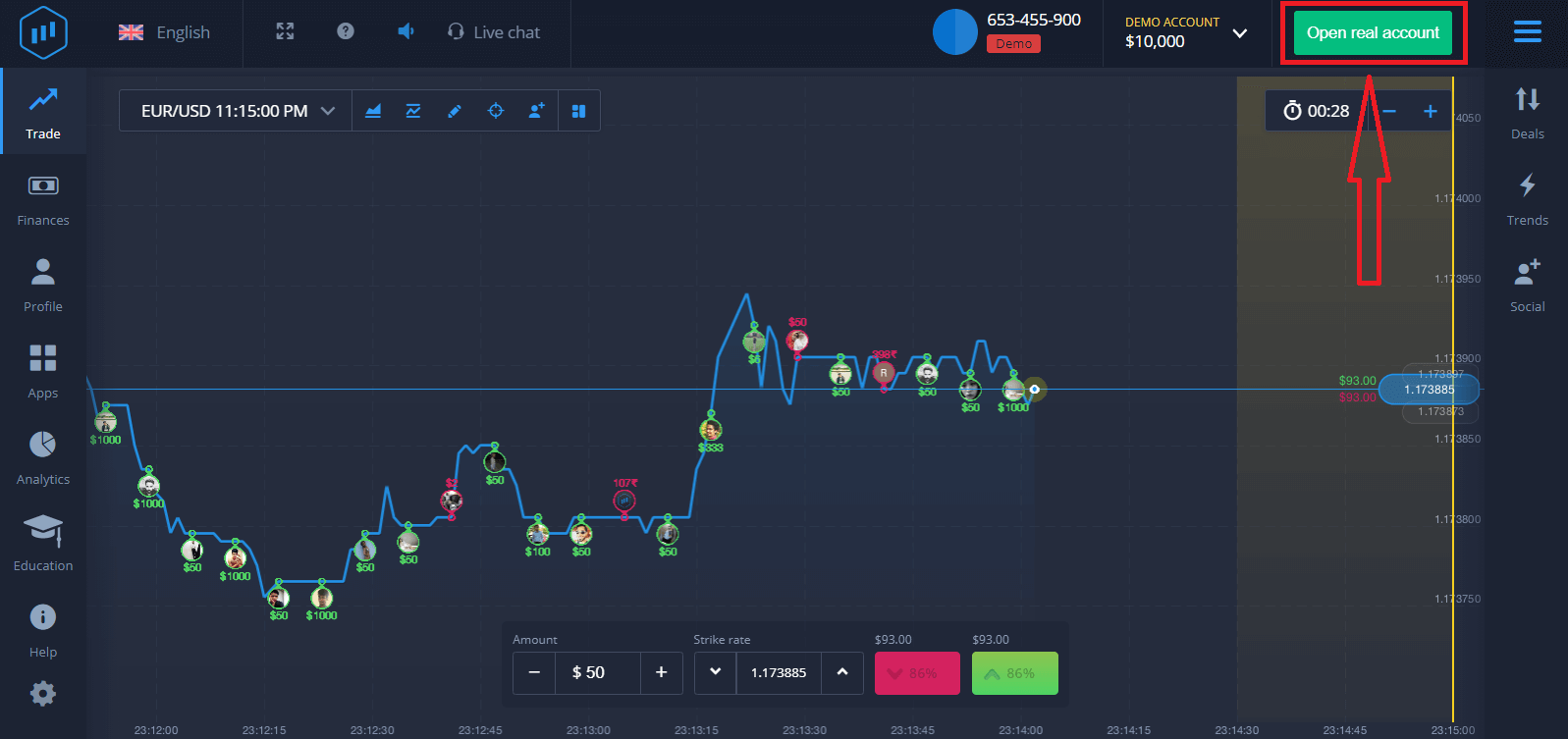
There are three available options: signing up with your email address, Facebook account or Google account as below. All you need is to choose any suitable method and create a password.
How to Open an ExpertOption Account with an Email
1. You can sign up for an account on the platform by clicking the “Real Account” button in the upper right corner.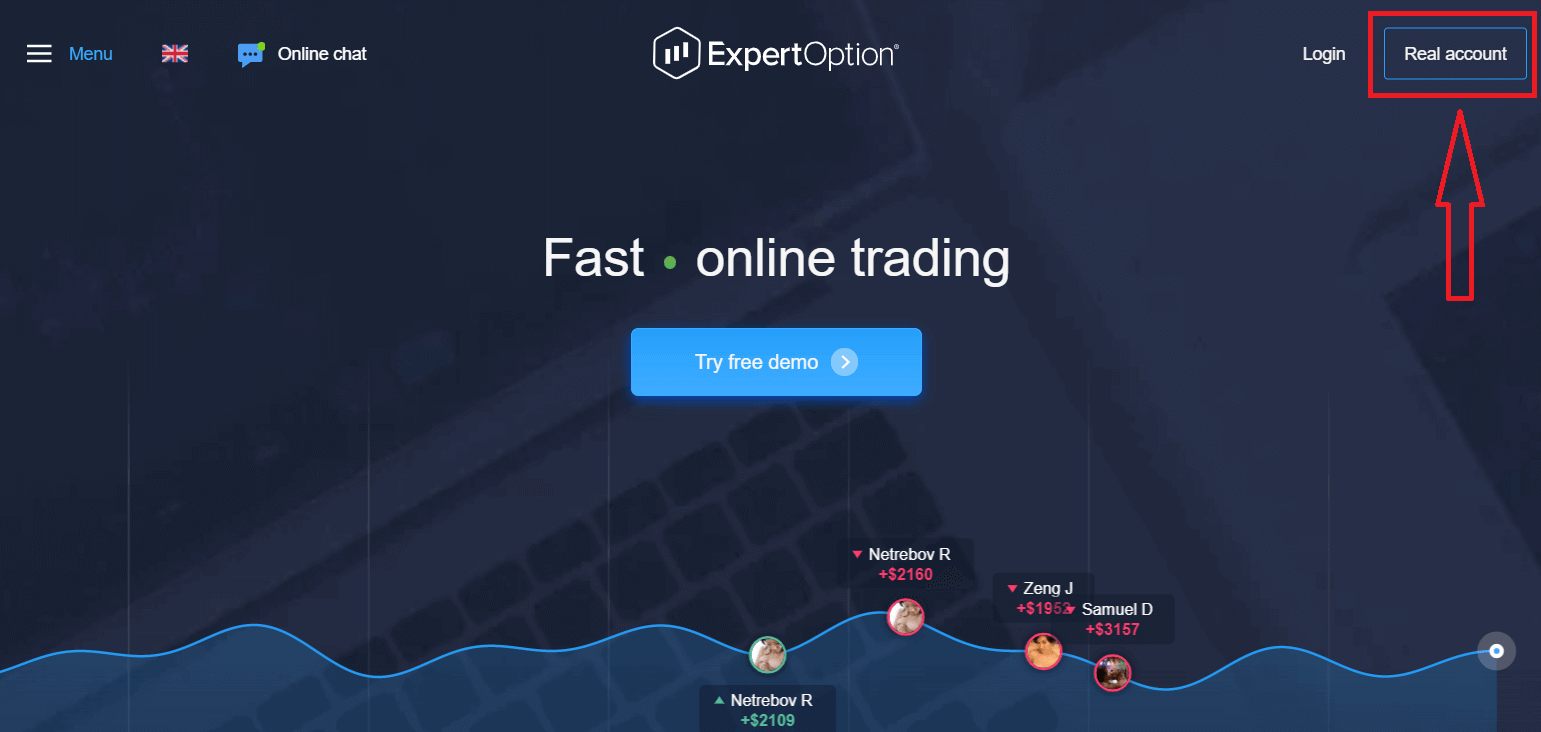
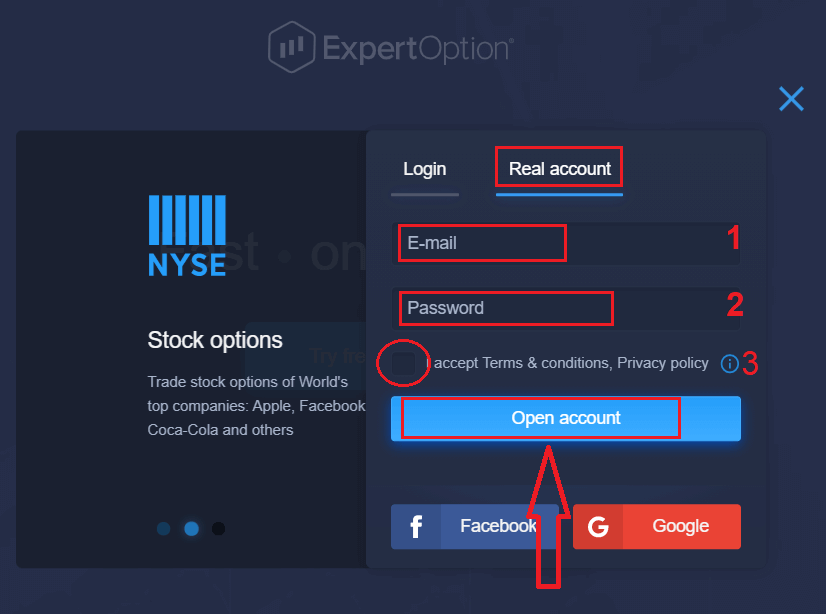
2. To sign up, you need to fill in all the necessary information and click "Open Account."
- Enter a valid email address.
- Create a strong password.
- You also need to read "Terms and Conditions" and check it.
Congratulation! You have registered successfully. To start Live trading you have to make an investment in your account (The minimum deposit is 10 USD).
How to make a Deposit in ExpertOption
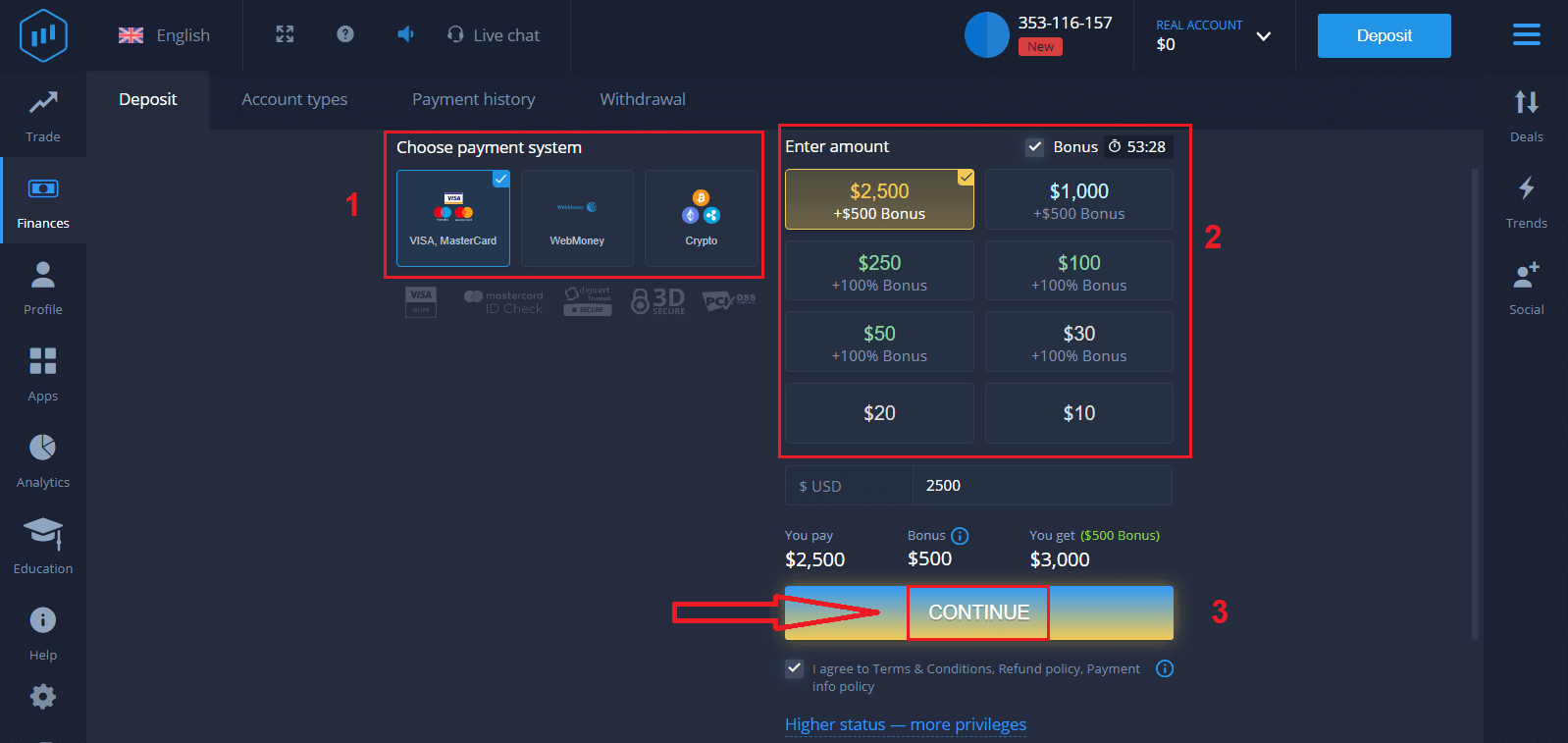
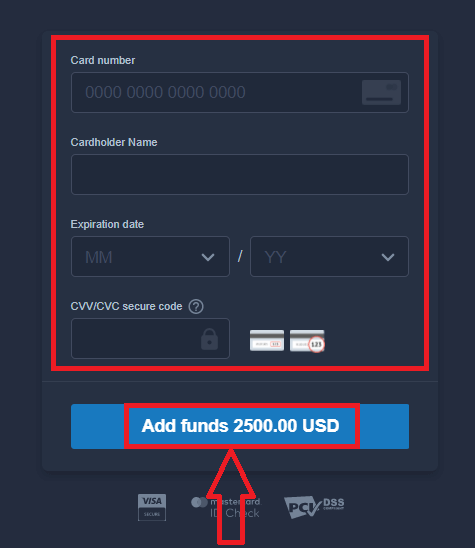
Enter the card data and click "Add funds ..."
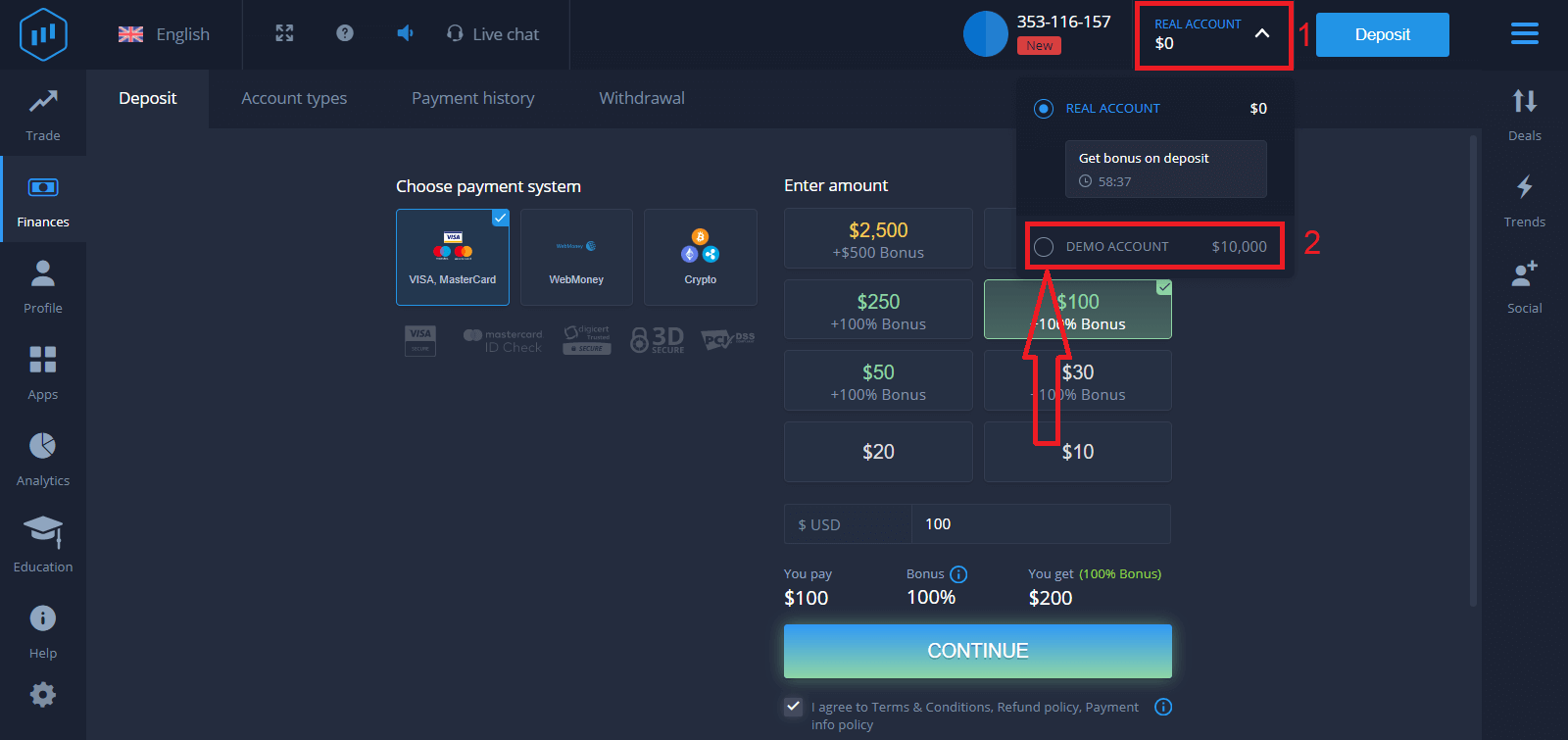
Now you can trade on a real account after depositing successfully.
If you want to use the Demo Account, click "REAL ACCOUNT" and select "DEMO ACCOUNT" to start trading with $10,000 in the Demo Account. A demo account is a tool for you to get familiar with the platform, practice your trading skills on different assets, and try out new mechanics on a real-time chart without risks.
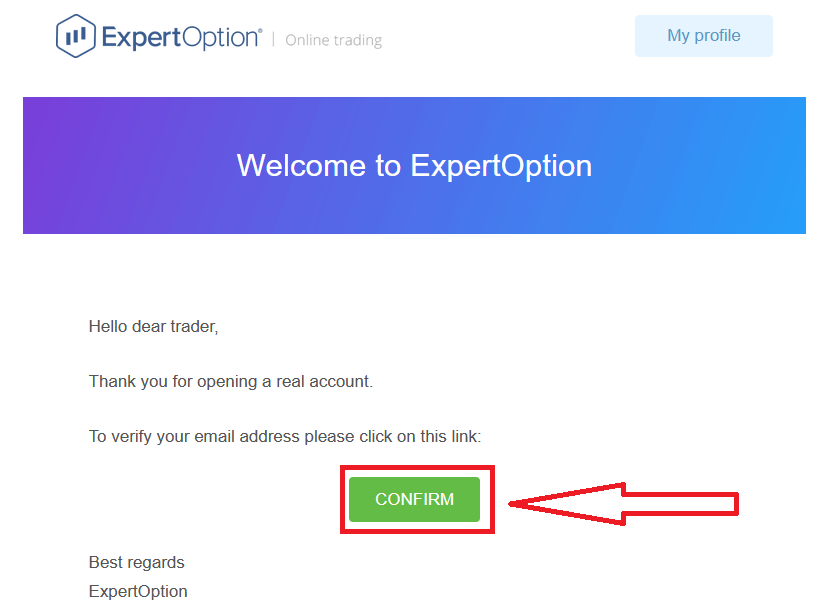
Finally, after you access your email, ExpertOption will send you a confirmation email. Click the button in that mail to activate your account. So, you will finish registering and activating your account.
How to Open an ExpertOption Account using Facebook
Also, you have an option to open your account by Facebook account, and you can do that in just a few simple steps:1. Check "Terms and Conditions" and click on the Facebook button
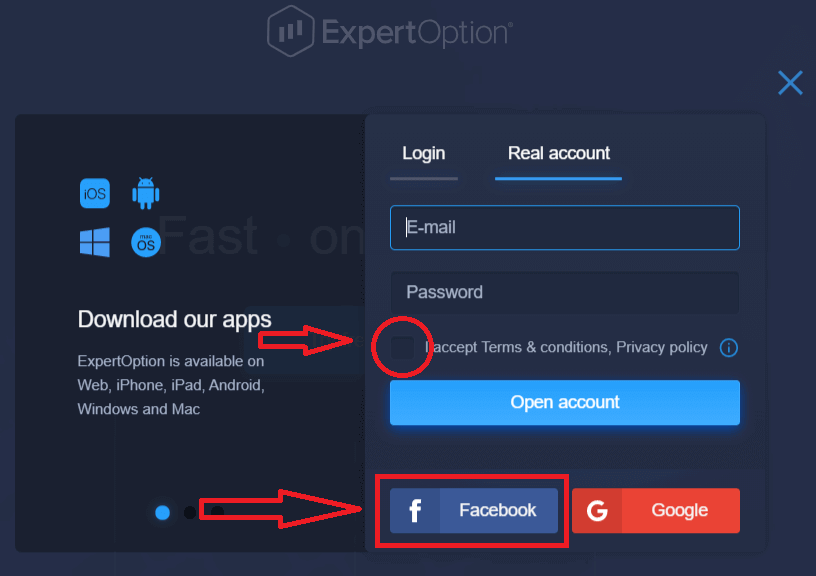
2. The Facebook login window will be opened, where you will need to enter your email address that you used to register on Facebook
3. Enter the password from your Facebook account
4. Click on “Log In.”
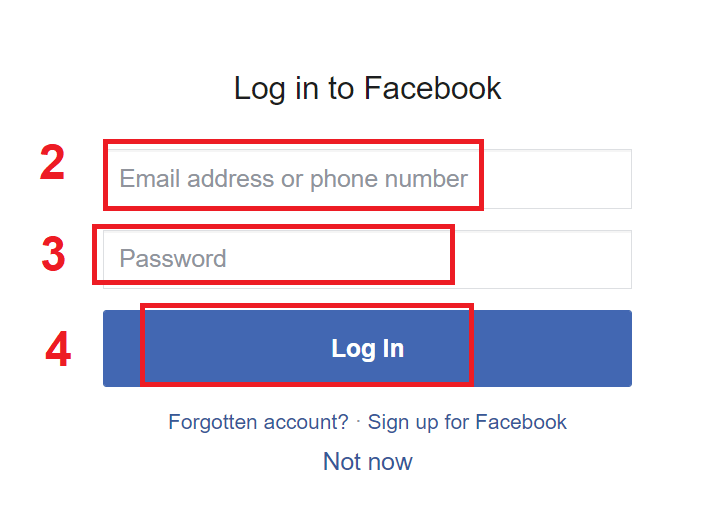
Once you’ve clicked on the “Log in” button, ExpertOption is requesting access to: Your name and profile picture and email address. Click "Continue..."
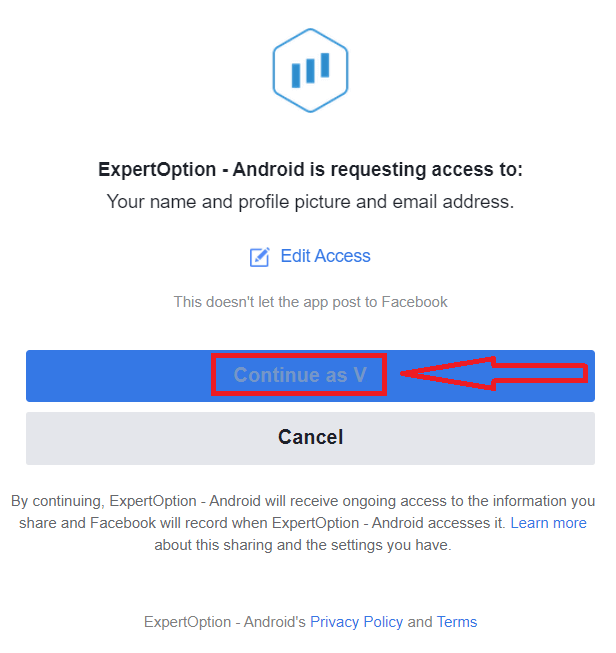
After that, you will be automatically redirected to the ExpertOption platform.
How to Open an ExpertOption Account using Google
1. To sign up with a Google account, check "Terms and Conditions" and click on the corresponding button in the registration form.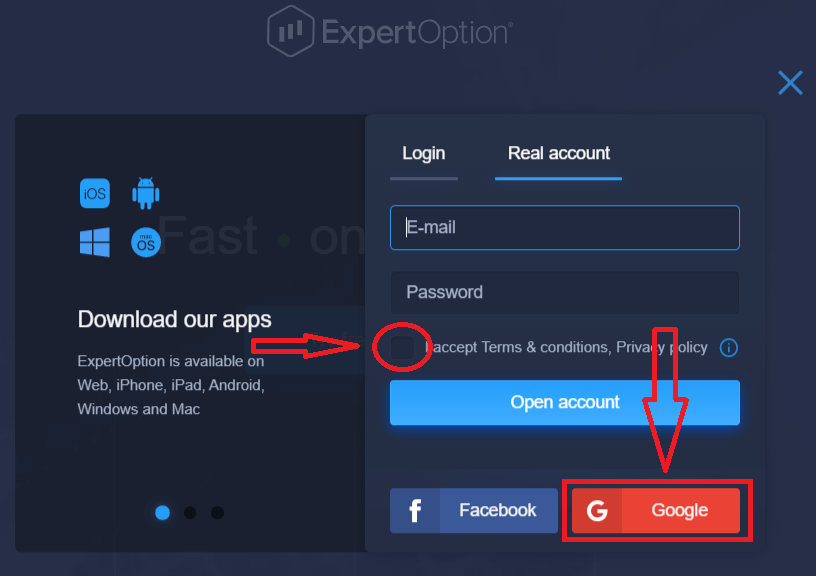
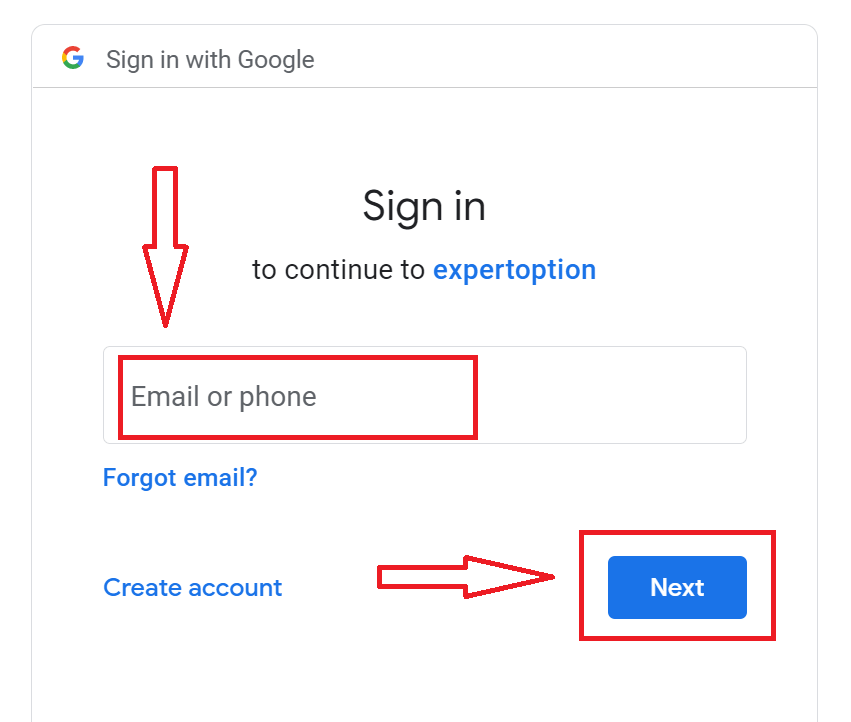
2. In the newly opened window, enter your phone number or email and click "Next".
3. Then enter the password for your Google account and click “Next”.
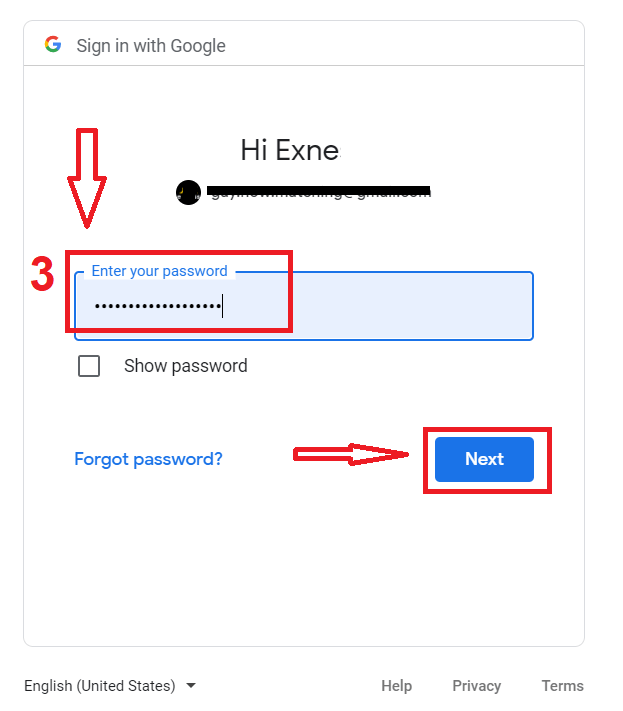
After that, follow the instructions sent from the service to your email address.
Open an Account in the ExpertOption iOS App
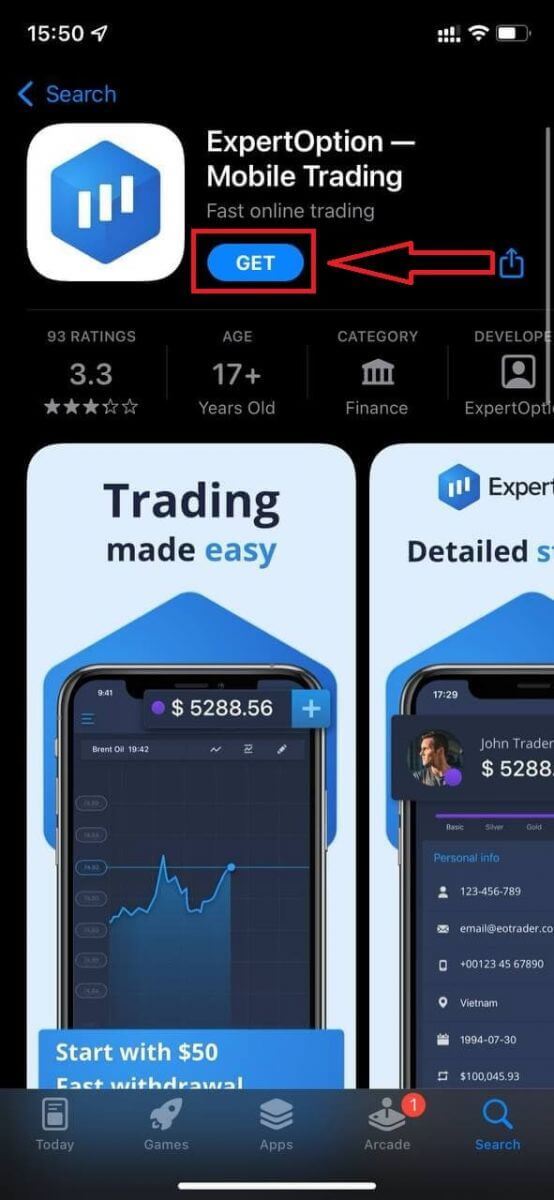
If you have an iOS mobile device, you will need to download the official ExpertOption mobile app from the App Store or here. Simply search for “ExpertOption - Mobile Trading” app and download it on your iPhone or iPad.The mobile version of the trading platform is exactly the same as web version of it. Consequently, there won’t be any problems with trading and transferring funds.
After that, open ExpertOption app, you will see the trading platform, click "Buy" or "Sell" to predict where the graph will go.
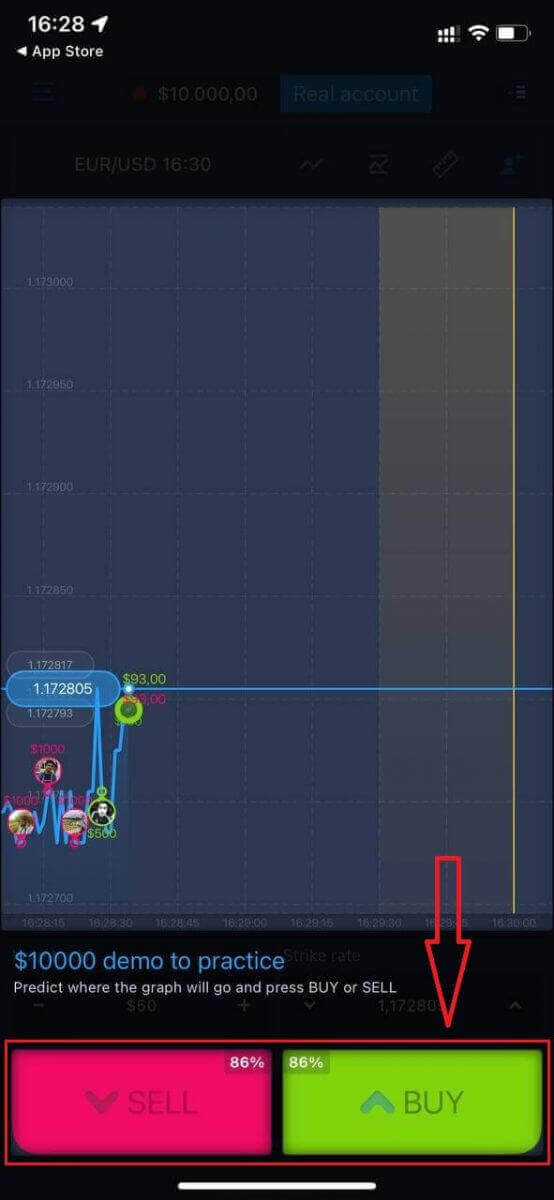
Now you can continue trading with $10,000 in a Demo account.
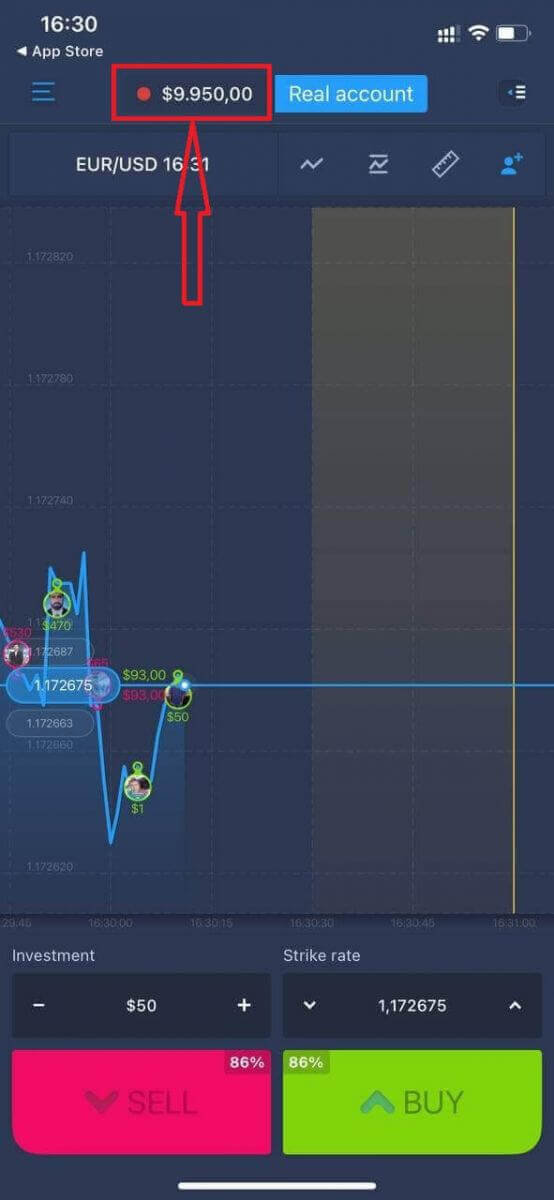
You can also open an account on the iOS mobile platform by clicking "Real account."
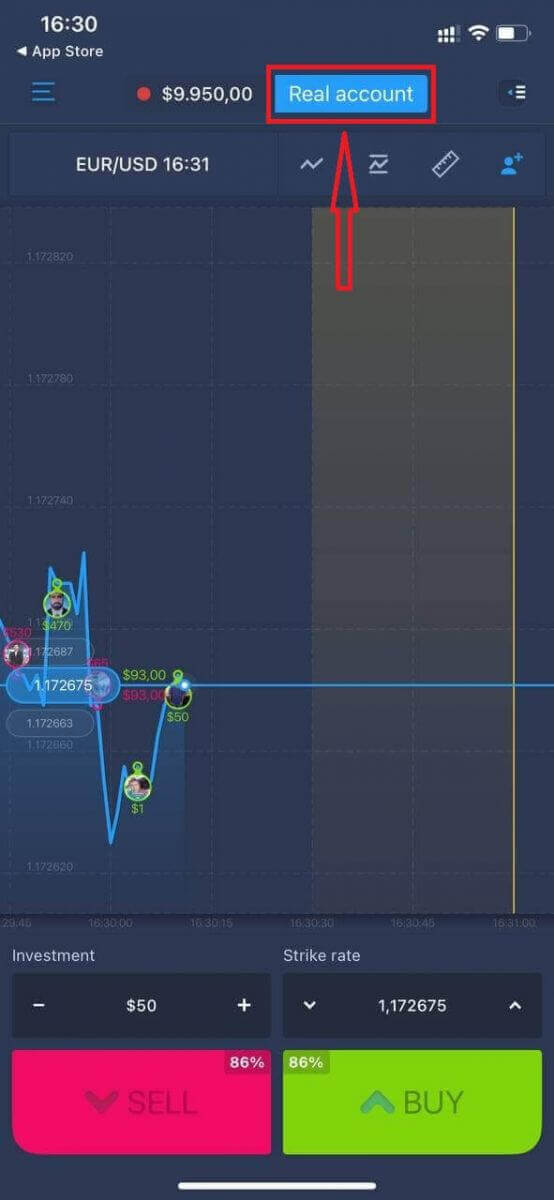
- Enter a valid email address.
- Create a strong password.
- You also need to accept the "Terms and Conditions."
- Click "Create account."
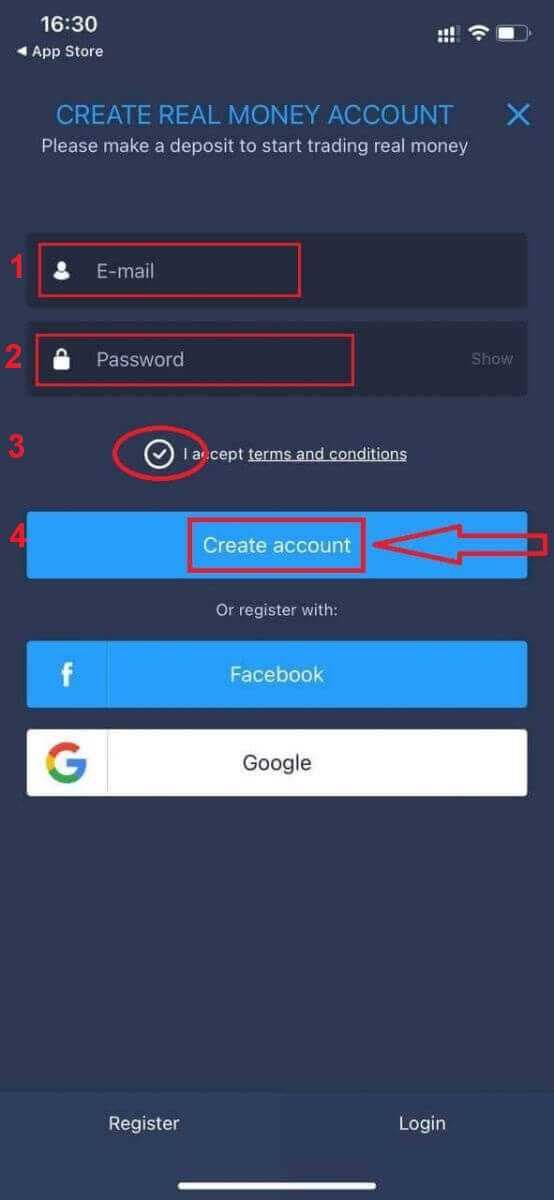
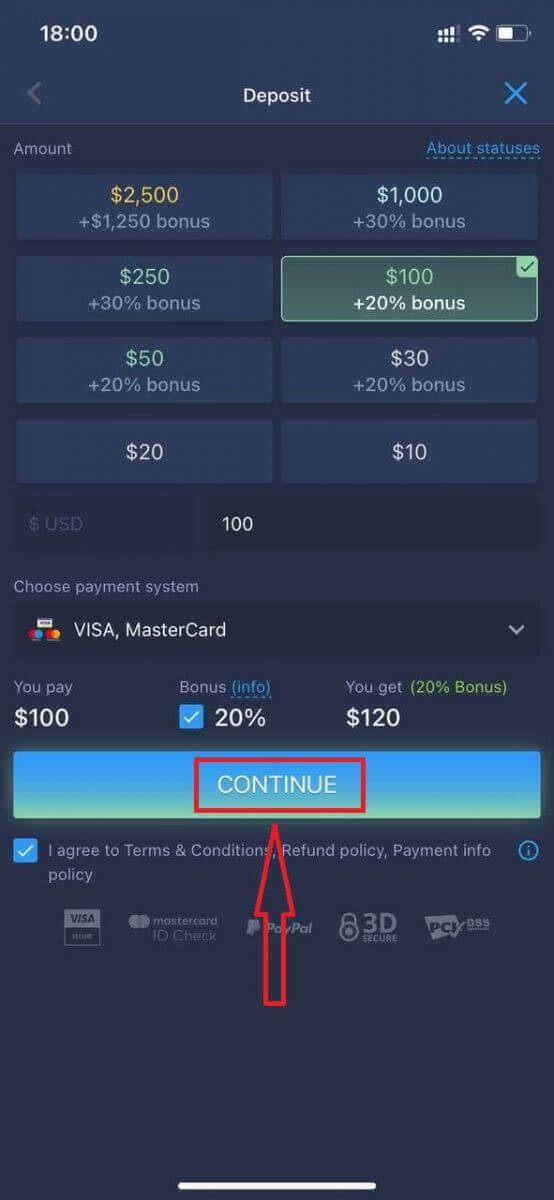
Congratulation! You have registered successfully, now you can deposit and start trading with a real account
Open an Account in the ExpertOption Android App
If you have an Android mobile device you will need to download the official ExpertOption mobile app from Google Play or here. Simply search for “ExpertOption - Mobile Trading” app and download it on your device.The mobile version of the trading platform is exactly the same as web version of it. Consequently, there won’t be any problems with trading and transferring funds. Moreover, ExpertOption trading app for Android is considered to be the best app for online trading. Thus, it has a high rating in the store.
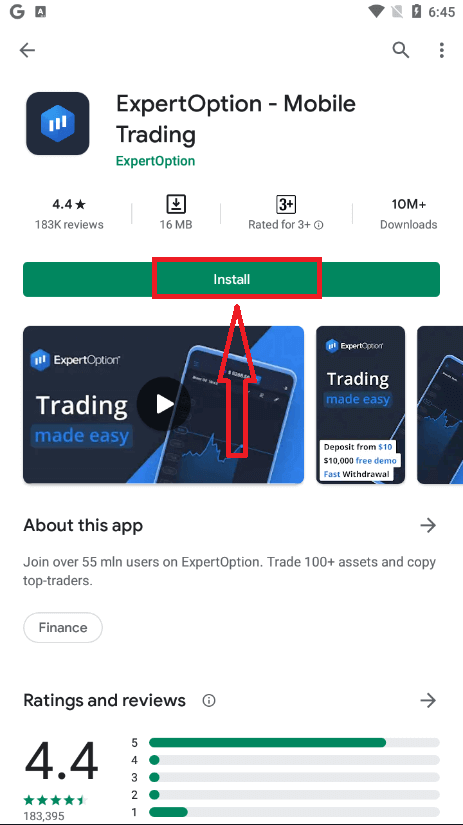
After that, open ExpertOption app, you will see the trading platform, click "Buy" or "Sell" to predict where the graph will go.
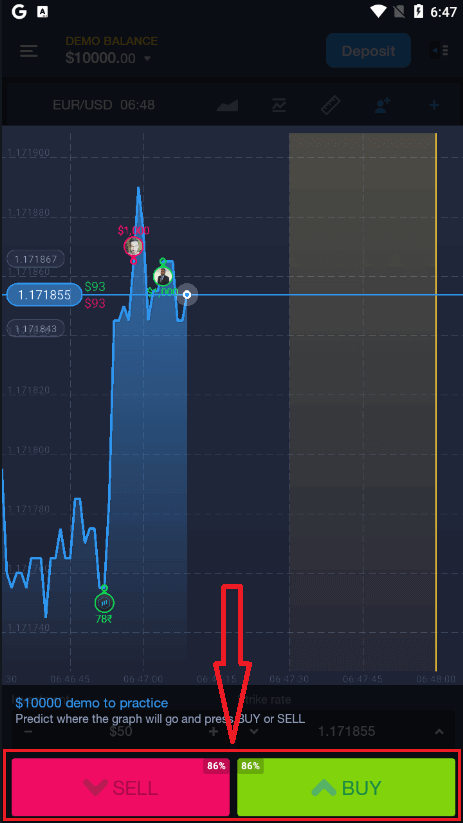
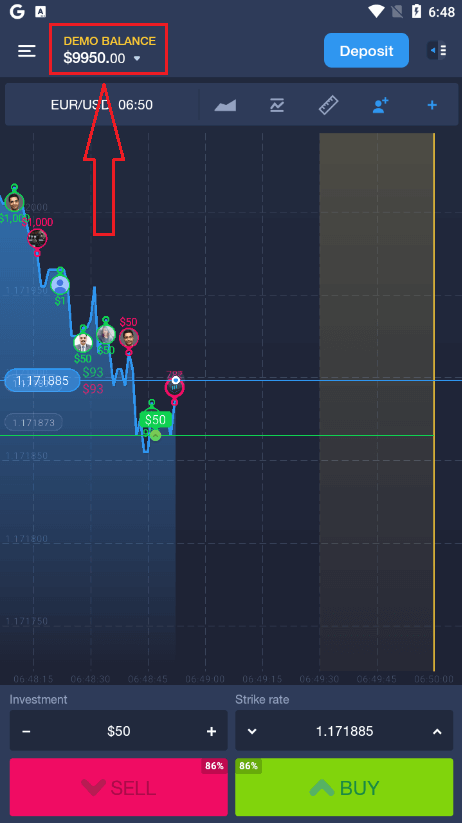
Now you can continue trading with $10,000 in a Demo account.
You can also open an account on the Android mobile platform by clicking "DEMO BALANCE," then clicking "Open real account."
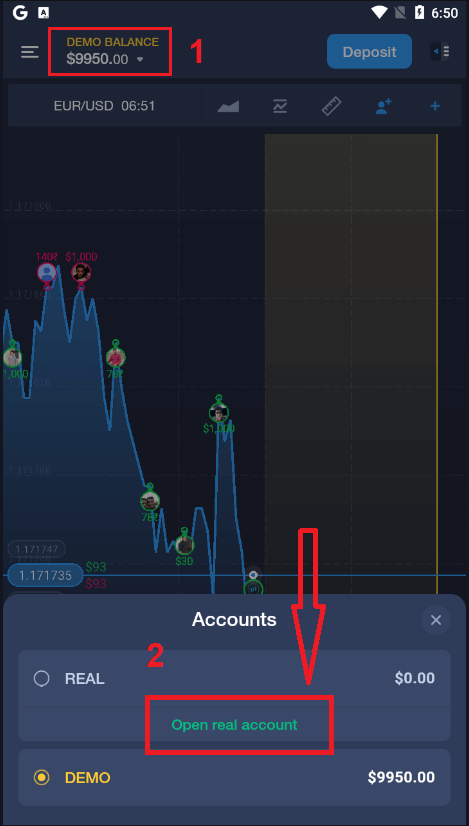
- Enter a valid email address.
- Create a strong password.
- You also need to accept the "Terms and Conditions."
- Click "Create account."
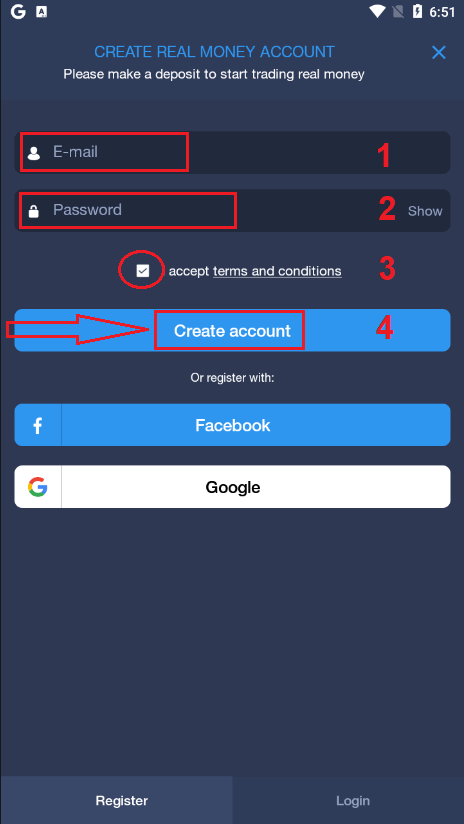
Congratulation! You have registered successfully, now you can deposit and start trading with the real account
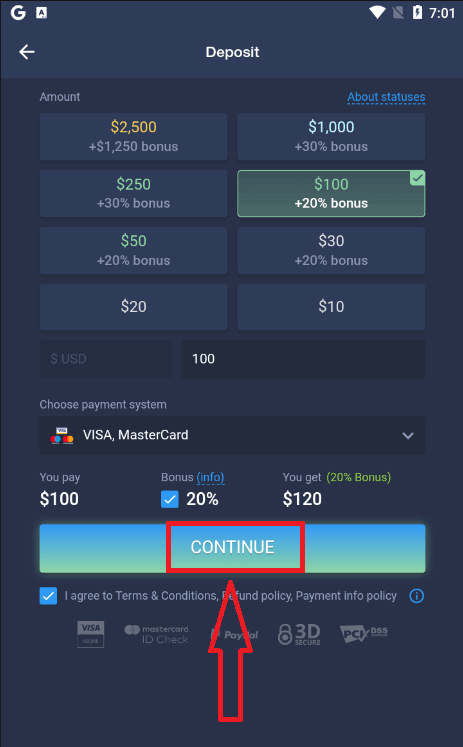
Open an ExpertOption Account on Mobile Web
If you want to trade on the mobile web version of the ExpertOption trading platform, you can easily do it. Initially, open up your browser on your mobile device. After that, search for “expertoption.com” and visit the official website of the broker.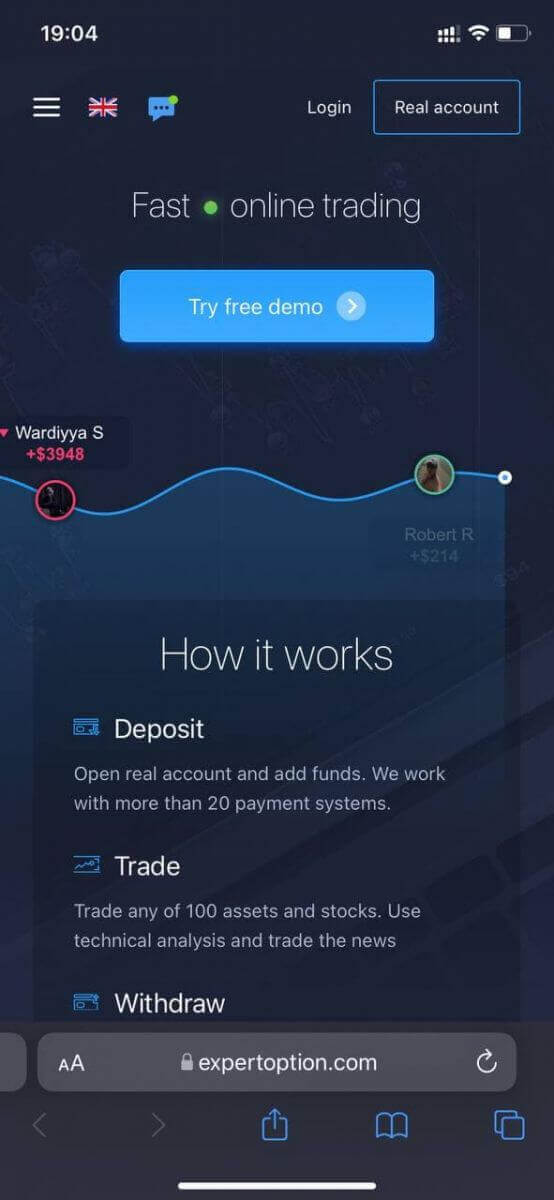
Click the "Real account" button in the upper right corner.
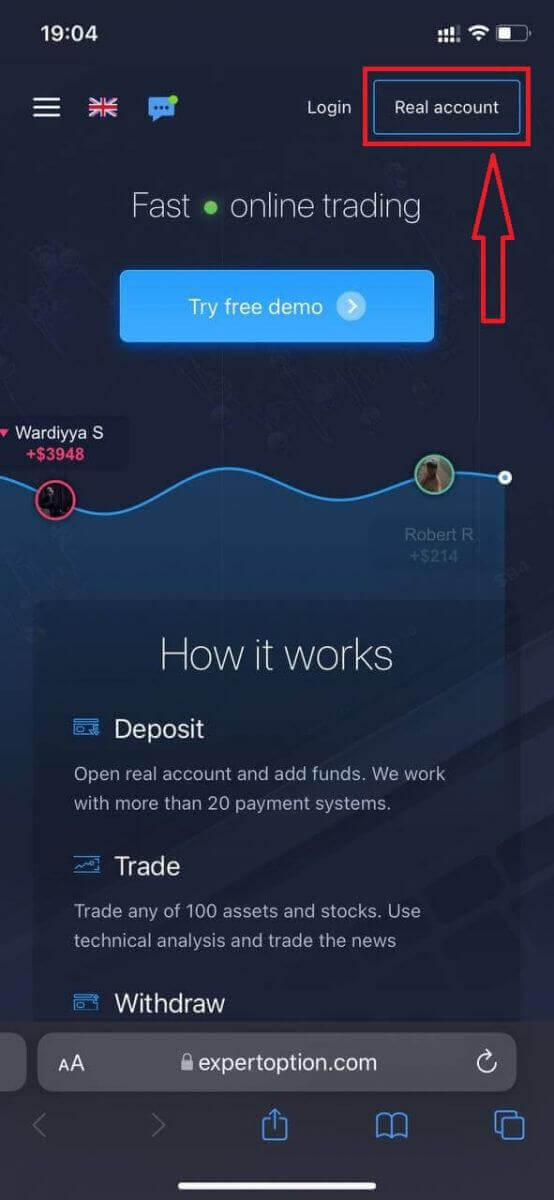
At this step, we still enter the data: email, password, accept "Terms and Conditions", and click "Open account"
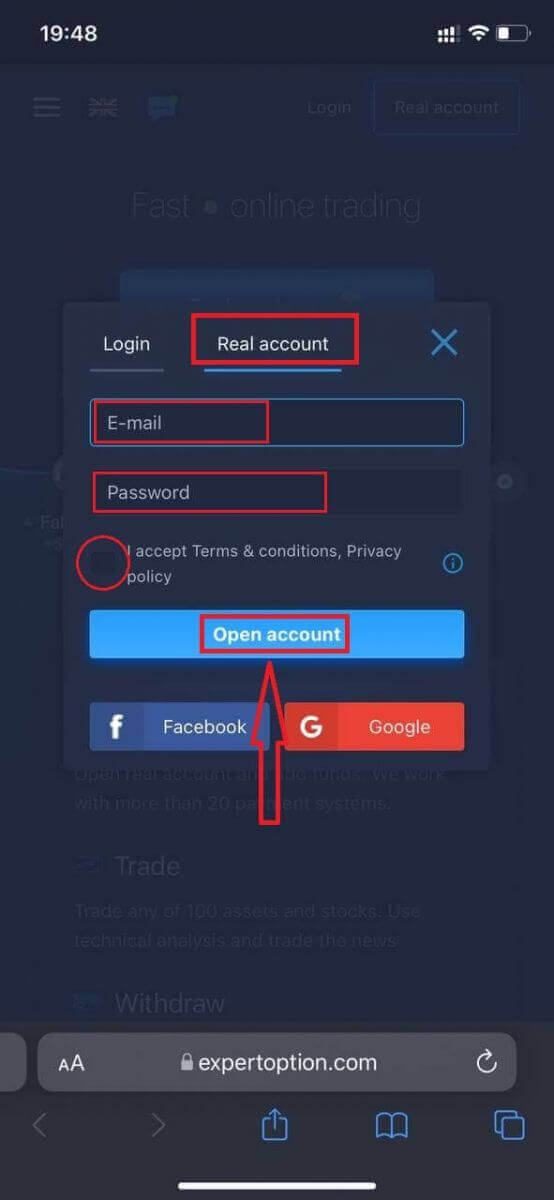
Congratulation! You have registered successfully. Now you can deposit and start trading with a real account
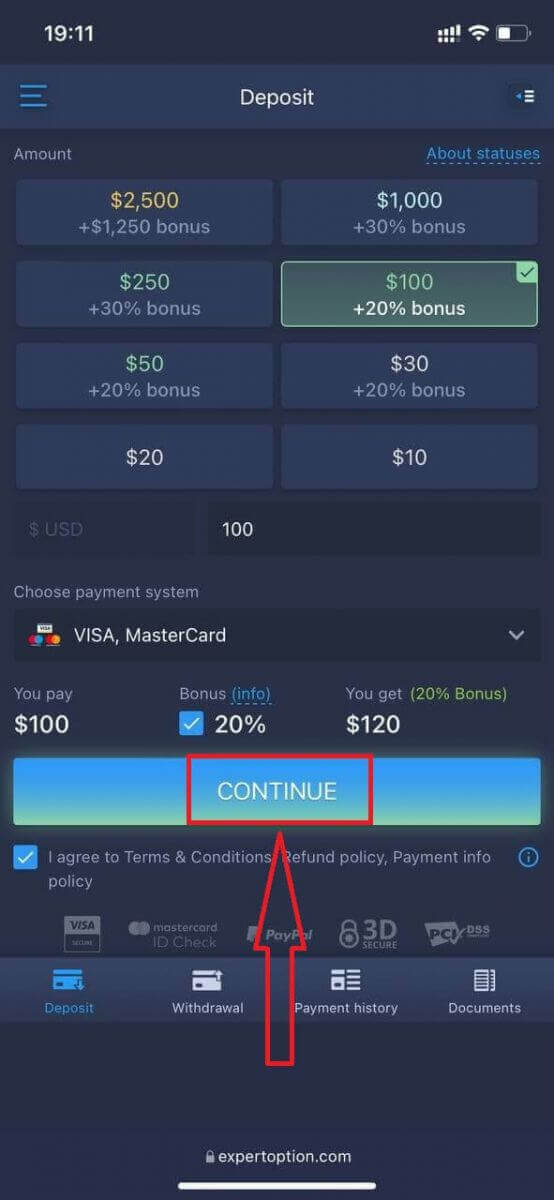
The mobile web version of the trading platform is exactly the same as a regular web version of it. Consequently, there won’t be any problems with trading and transferring funds.
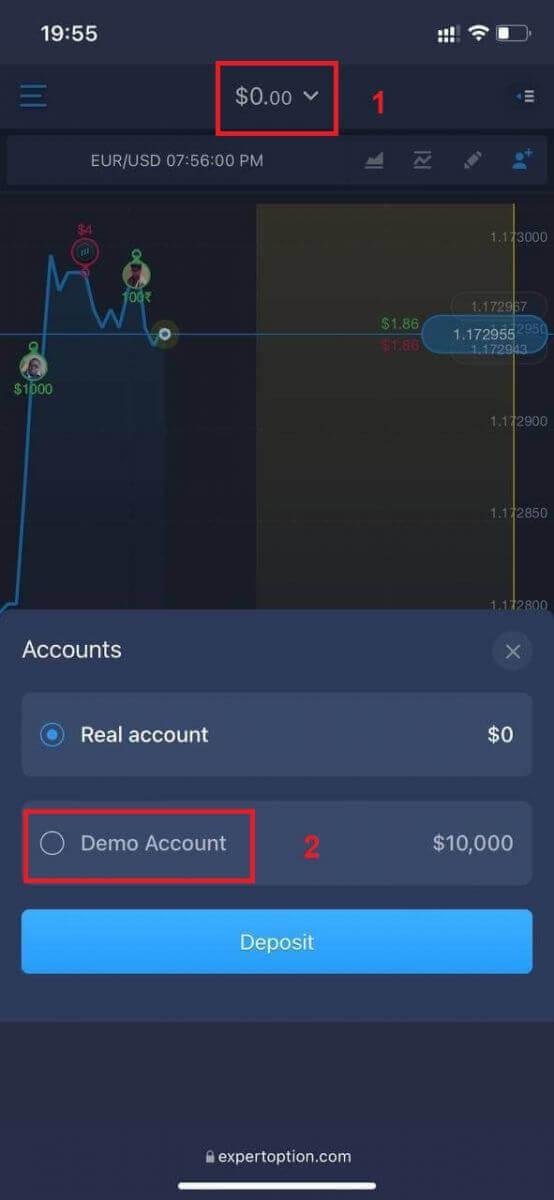
Or you want to trade with a Demo account first, to do that by clicking the menu icon.
Click "Trade."
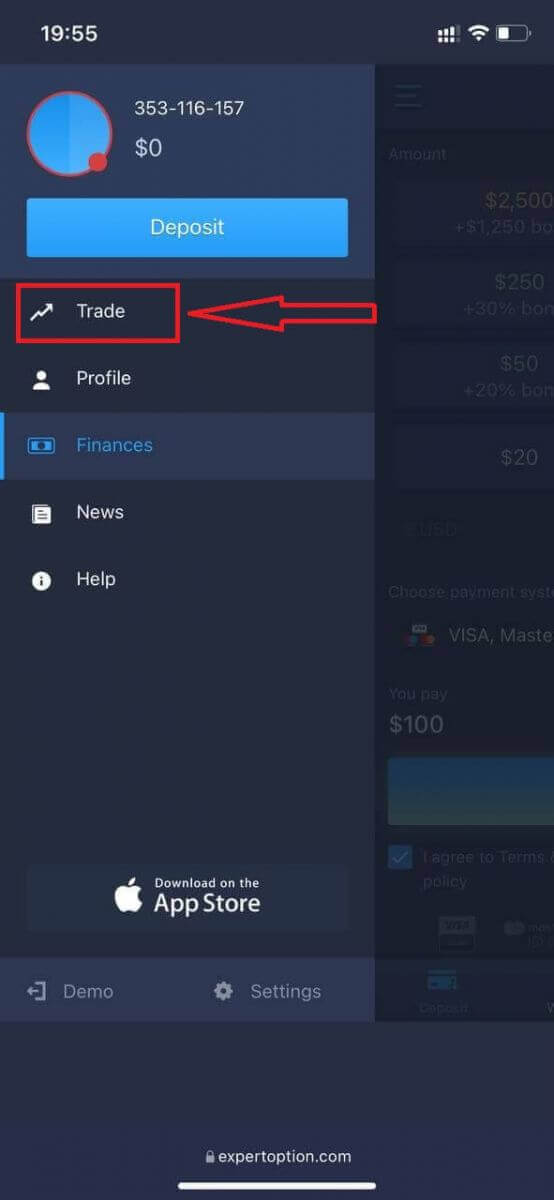
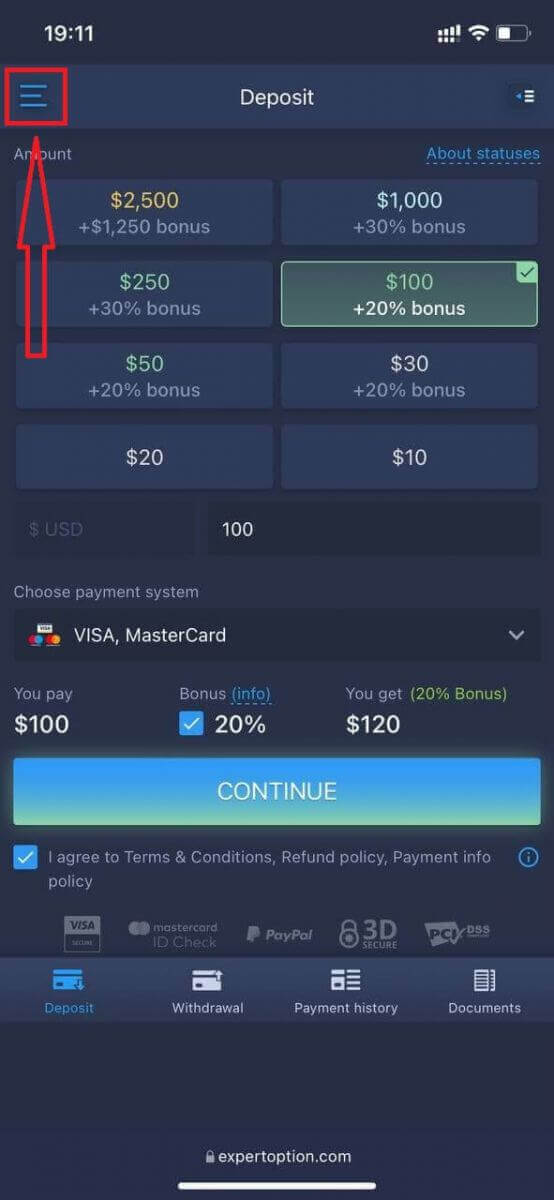
Switch accounts from the Real account to the Demo account.
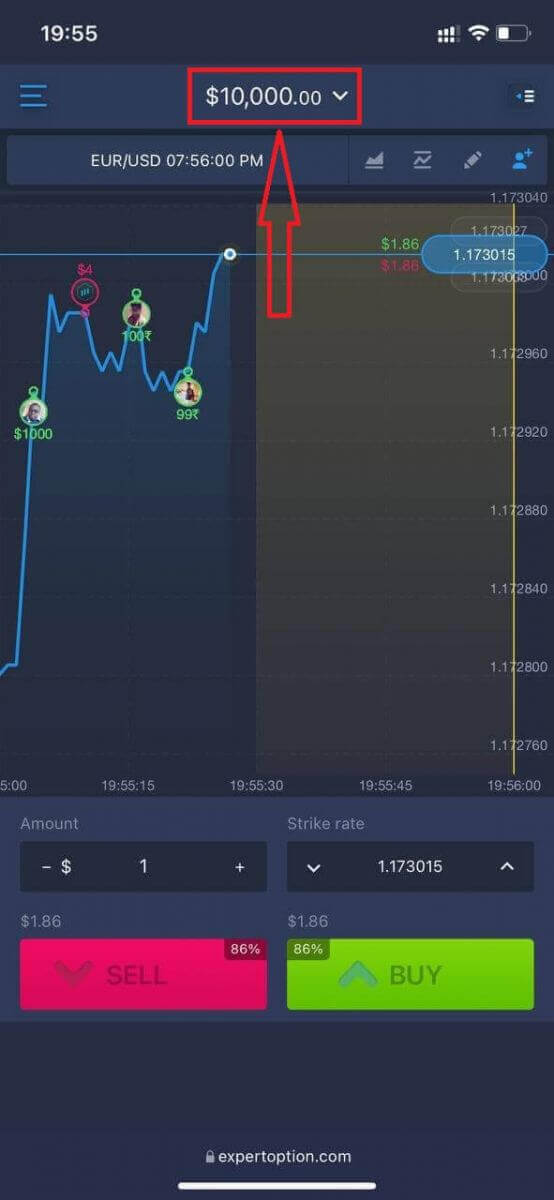
You will have $10,000 in the demo account.
Frequently Asked Questions (FAQ)
Is there a demo account?
We offer you to use a demo account with the balance of 10 000 virtual money in order to be able to evaluate the benefits of the trading platform.
How much money can I make on the practice account?
You can’t take any profit from transactions you complete on the practice account. You get virtual funds and make virtual transactions. It is intended for training purposes only. To trade using real money, you need to deposit funds into a real account.
How do I switch between the practice account and the real account?
To switch between accounts, click your balance in the upper-center corner. Make sure you are in the traderoom. The panel that opens shows all your accounts: your real account and your practice account. Click an account to make it active so you can use it for trading.
Conclusion: Practice Smart, Trade Smart on ExpertOption
Opening a demo account on ExpertOption is one of the smartest first steps you can take in your trading journey. With instant access, zero risk, and a realistic market environment, the demo account provides the perfect training ground for mastering your trading skills. Whether you’re exploring the platform or refining a strategy, ExpertOption’s demo account empowers you to learn with confidence before committing real funds. Start today and trade smarter tomorrow.
FAQs
Open the ExpertOption web platform, choose the demo or practice mode option visible on the landing screen, and either continue as guest or register with an email or social login to save progress. The platform will load a virtual balance so you can place trades, switch assets, and test indicators without depositing real money. If features look restricted, sign in to a registered demo profile to unlock saved settings.
No deposit is typically required to use the demo balance; verification is usually unnecessary for practice mode. However, verification and a real deposit are required later if you want to convert to a live account and withdraw real profits. Treat demo access as separate from live-account funding and compliance steps.
Common causes include being signed into a real account instead of demo mode, session or cache issues in your browser or app, an outdated application version, or regional access restrictions. Start by logging out and selecting Demo, clearing cache, or reinstalling the app. If you registered but didn’t confirm your email, sign-in problems can prevent demo loading. Contact support with a screenshot if the issue persists and mention your account ID and device.
Demo availability varies: some platforms provide unlimited practice, others impose time limits or periodic resets of virtual funds. You may also face limits on certain instruments or order sizes in demo mode. Check your account settings for reset options and any session expiration. Remember that execution and liquidity can differ from live markets, so treat demo metrics as educational rather than guaranteed live performance.
Yes—use the demo to test entry/exit rules, indicators, and position sizing without financial risk. Keep best practices in mind: simulate realistic bet sizes, track your trades, and practice risk management as you would on a live account. Note that psychological pressure and execution conditions differ in real markets; verification and a funded account will be required when you decide to trade with real money.