Download and Install ExpertOption for Windows & macOS PCs
Writen By

Online Trading Platform Researcher and Guide Writer
Researches broker platforms and trading account Systems.
Installing a trading app on a laptop often raises questions about compatibility, permissions, and safe sources — especially when you need desktop features and secure account access. Whether you prefer Windows or macOS, getting the official ExpertOption application onto your PC requires checking system requirements, choosing the correct installer, and avoiding common pitfalls like blocked installers, outdated OS builds, or insufficient user permissions. Download the installer only from the official site or verified app stores and avoid third‑party executables.
Below you’ll find clear steps to download and install the Windows and macOS versions, how to verify the installer, grant permissions, and connect your existing trading account. The walkthrough also covers common installation errors, how to update the app, and quick security checks to confirm you installed the official client rather than a copycat. After installation you'll be ready to sign in and access live or demo trading from your laptop.
Below you’ll find clear steps to download and install the Windows and macOS versions, how to verify the installer, grant permissions, and connect your existing trading account. The walkthrough also covers common installation errors, how to update the app, and quick security checks to confirm you installed the official client rather than a copycat. After installation you'll be ready to sign in and access live or demo trading from your laptop.
How to Download and Install the ExpertOption App on Windows
The Desktop app of the trading platform is exactly the same as web version of it. Consequently, there won’t be any problems with trading and transferring funds.
- Operating system:
- RAM:
- Video card:
- Hard disk space:
Download the official ExpertOption app here on your Laptop/PC.
Get the ExpertOption App for Windows
Your ExpertOption installer will start downloading automatically in a few seconds. If this does not happen, restart the download.
After downloading successfully, follow these steps to install it on your Laptop/PC:
Save the ExpertOption-7.2.12.exe file on your computer.
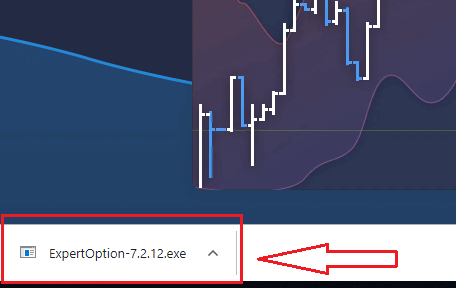
Open the downloaded file, double-click on the file, and it will run automatically.
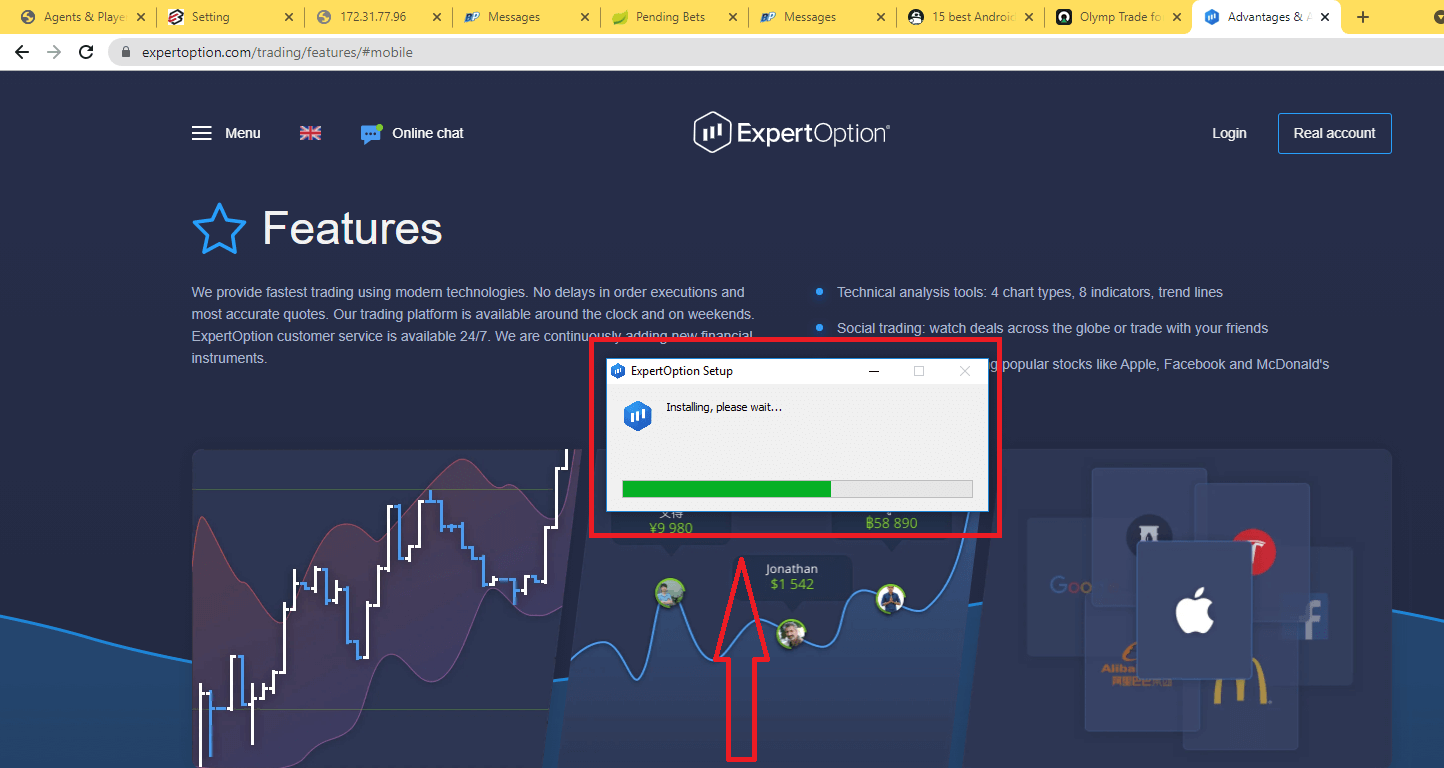
This will take you to the Demo trading page to start trading with $10,000 in a Demo account.
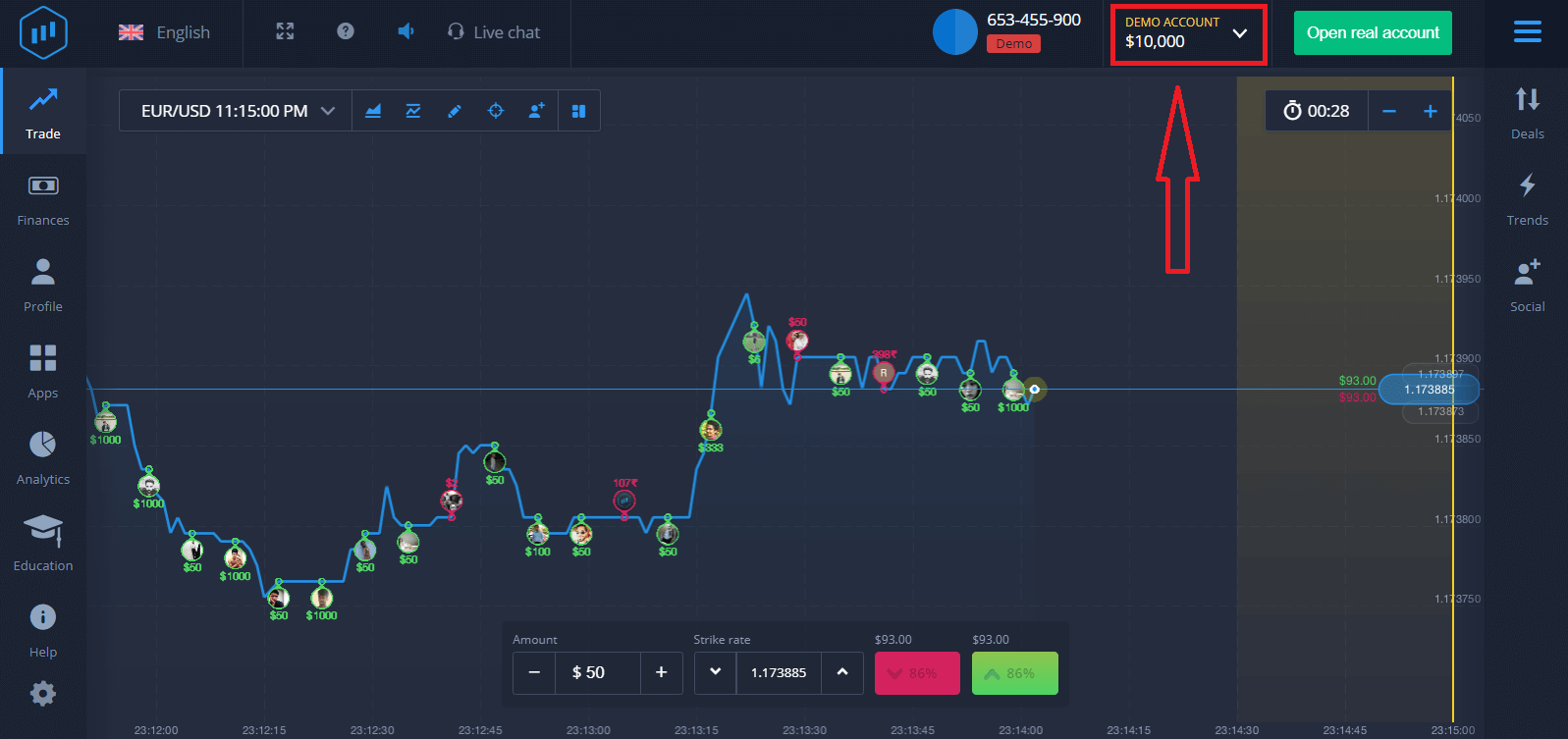
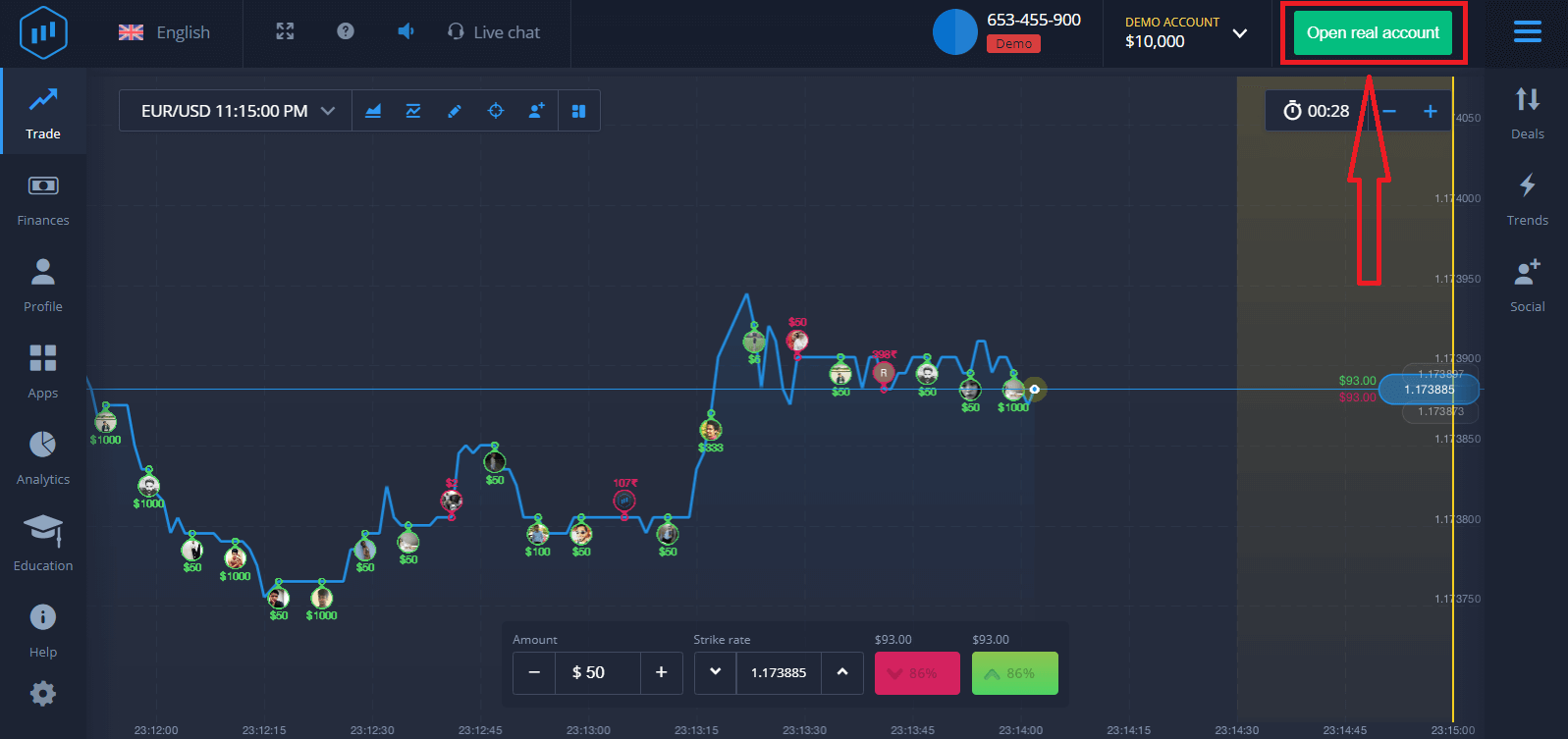
In order to continue using the account, save trading results and can trade on a real account. Click "Open real account" to create a ExpertOption account.
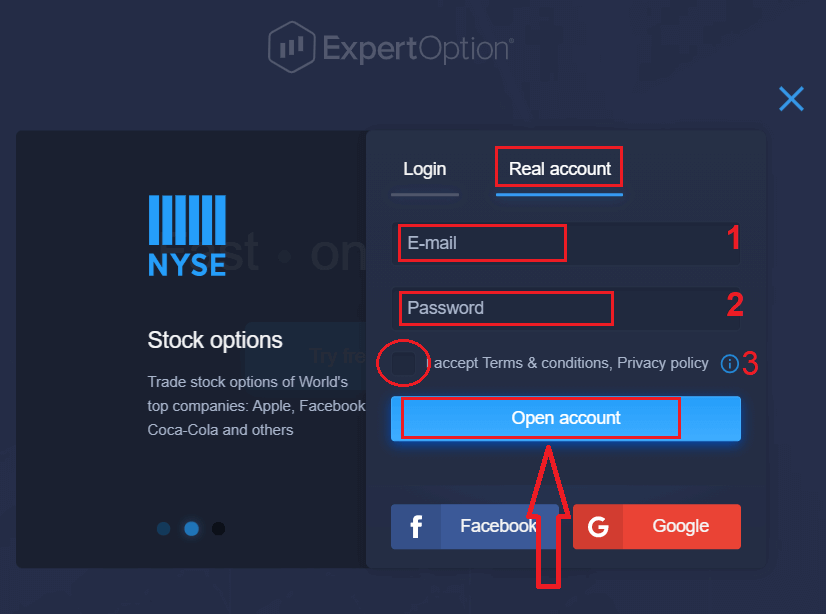
There are three available options: signing up with your email address, Facebook account or Google account as below. All you need is to choose any suitable method and create a password.
How to Download and Install the ExpertOption App on macOS
The Desktop app of the trading platform is exactly the same as web version of it. Consequently, there won’t be any problems with trading and transferring funds.
- Operating system:
- RAM:
- Video card:
- Hard disk space:
Download the official ExpertOption app here on your Laptop/PC.
Get the ExpertOption App for macOS
Your ExpertOption installer will start downloading automatically in a few seconds. If this does not happen, restart the download.
After downloading successfully, do the same steps as on Windows to install it on your Laptop/PC:
How to Register an ExpertOption Account using Email
1. You can sign up for an account on the platform by clicking the “Open real Account” button in the upper right corner.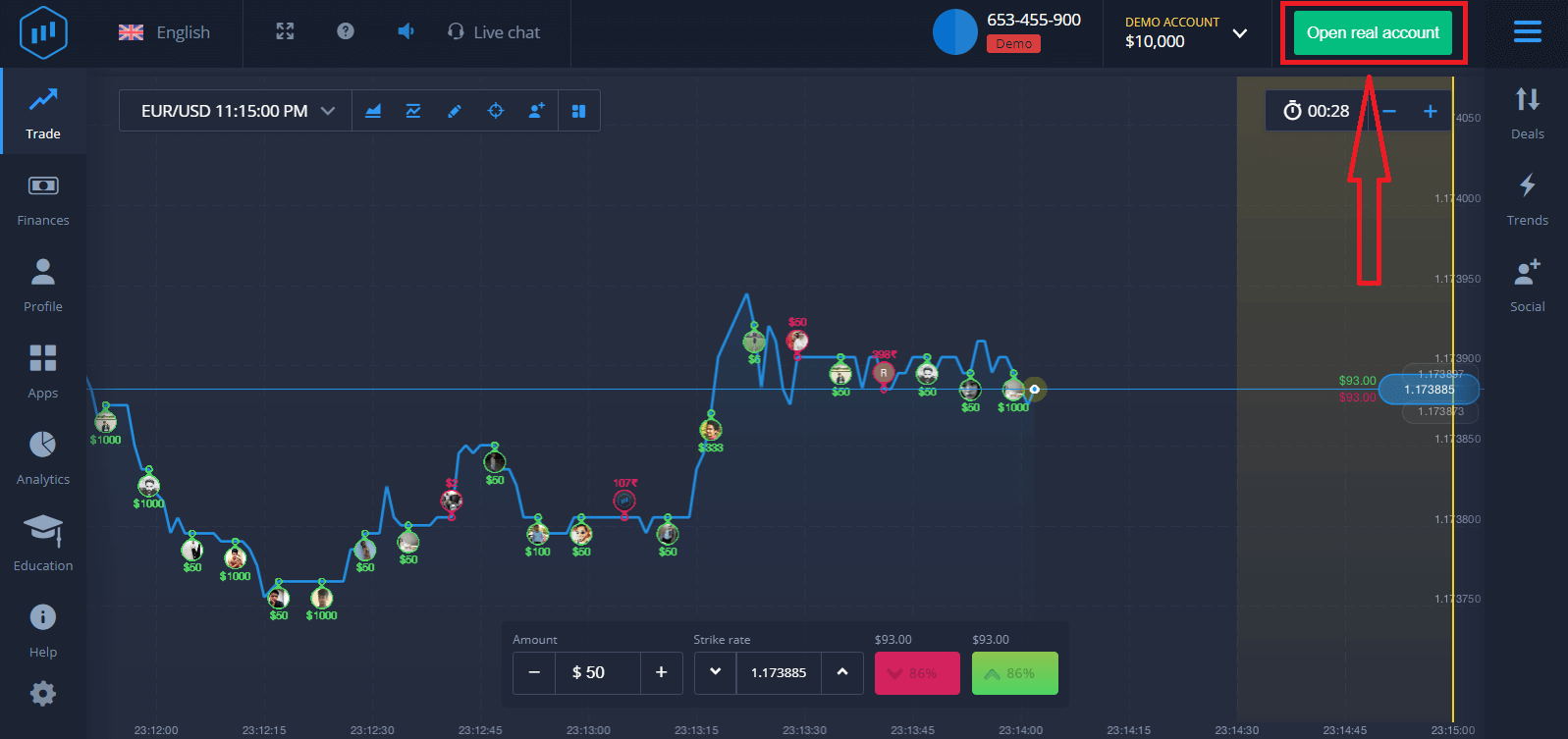
2. To sign up, you need to fill in all the necessary information and click "Open Account."
- Enter a valid email address.
- Create a strong password.
- You also need to read "Terms and Conditions" and check it.
Congratulation! You have registered successfully. To start Live trading you have to make an investment in your account (The minimum deposit is 10 USD).
How to make a Deposit in ExpertOption
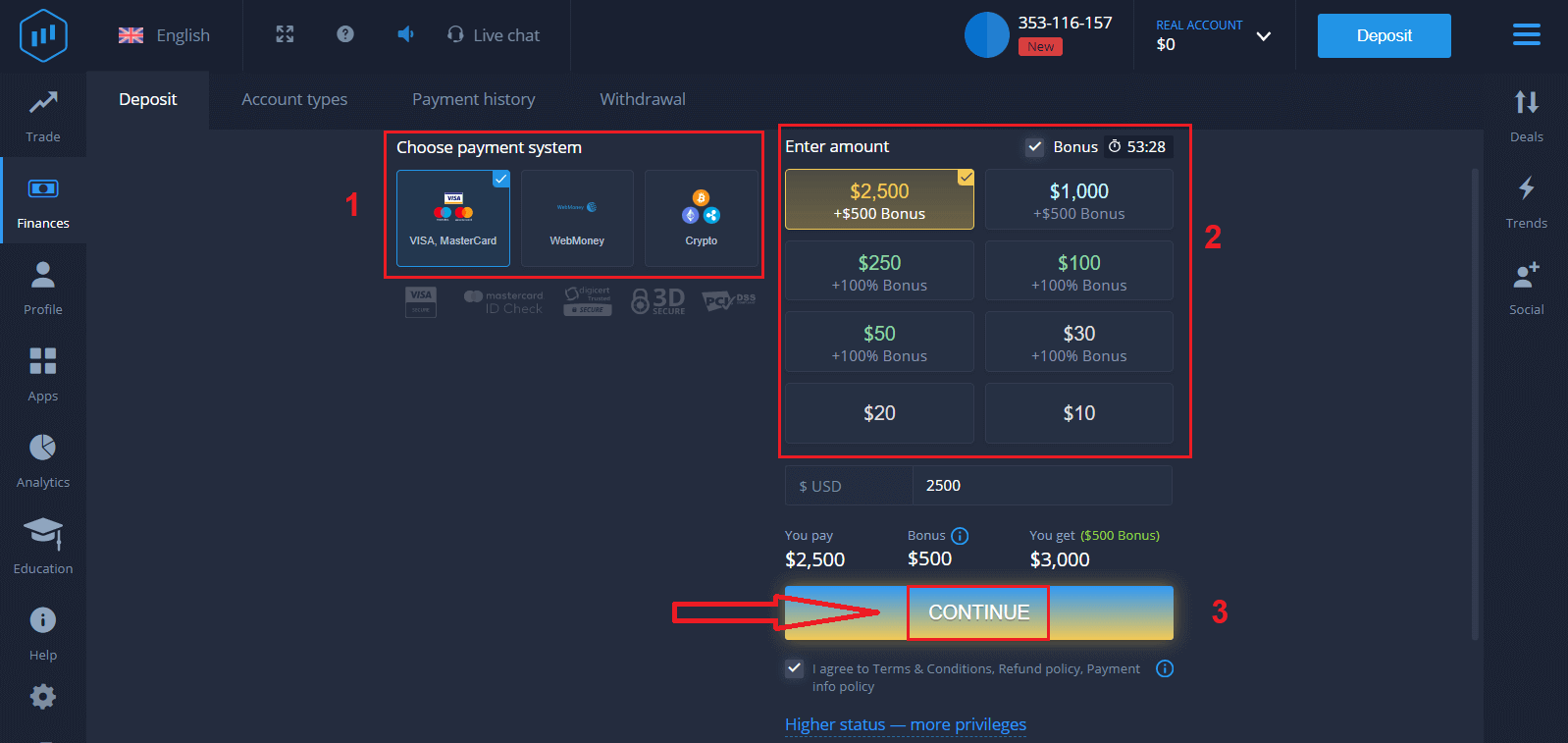
Enter the card data and click "Add funds ..."
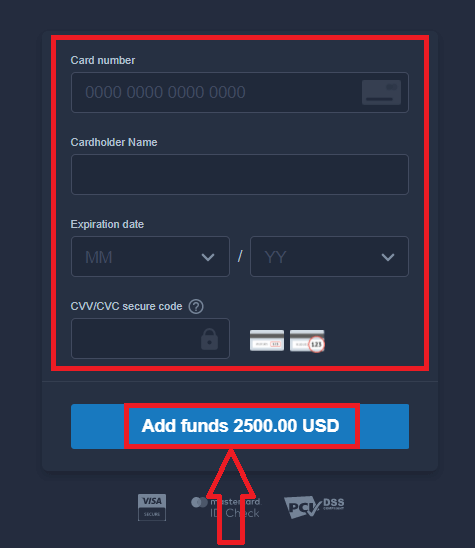
Now you can trade on a real account after depositing successfully.
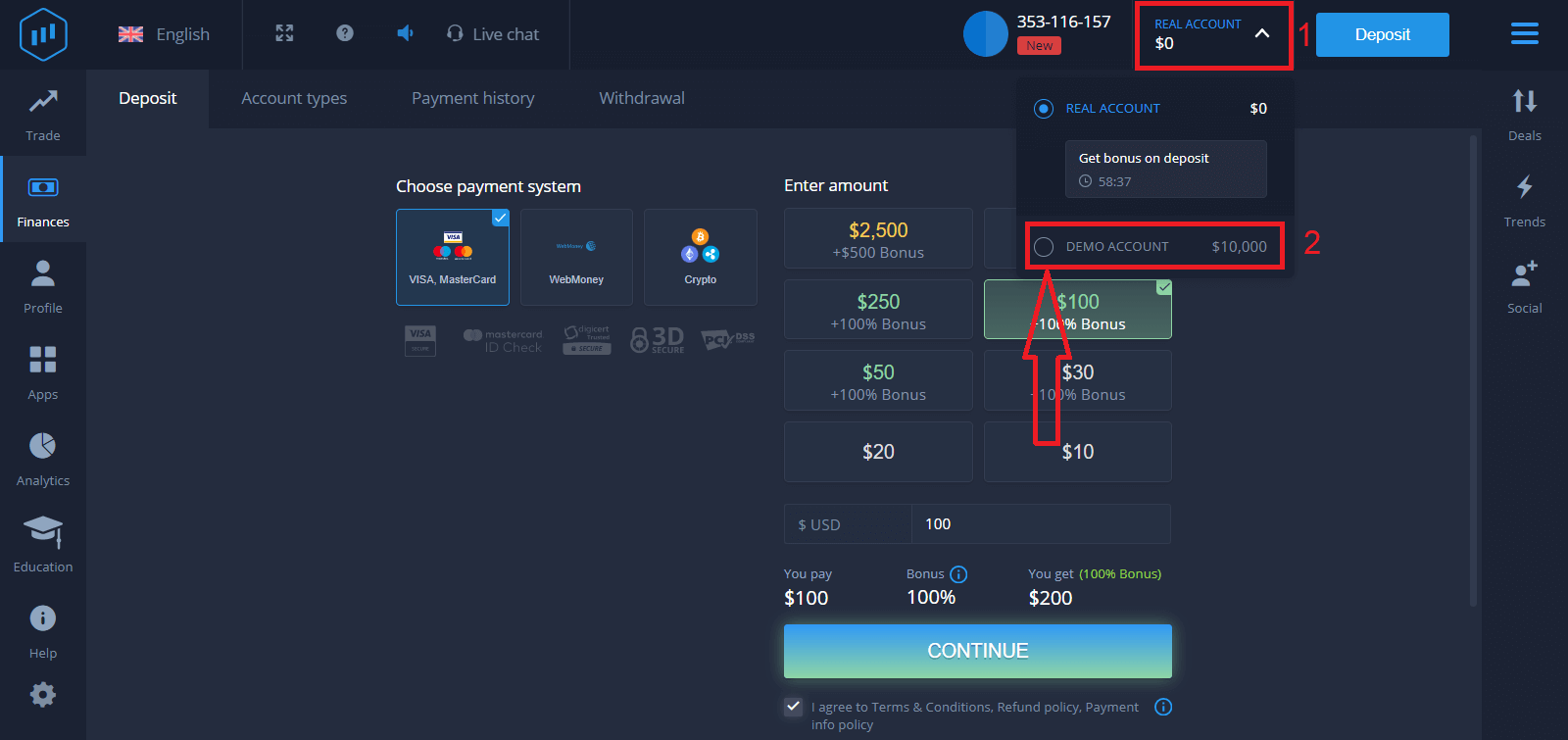
If you want to use the Demo Account, click "REAL ACCOUNT" and select "DEMO ACCOUNT" to start trading with $10,000 in the Demo Account. A demo account is a tool for you to get familiar with the platform, practice your trading skills on different assets, and try out new mechanics on a real-time chart without risks.
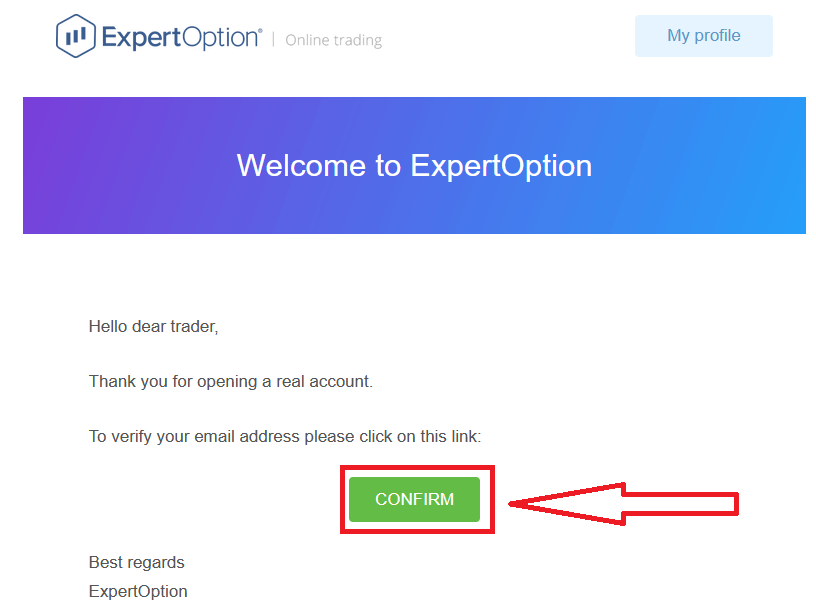
Finally, after you access your email, ExpertOption will send you a confirmation email. Click the button in that mail to activate your account. So, you will finish registering and activating your account.
How to Register an ExpertOption Account using Facebook
Also, you have an option to open your account by Facebook account, and you can do that in just a few simple steps:1. Check "Terms and Conditions" and click on the Facebook button
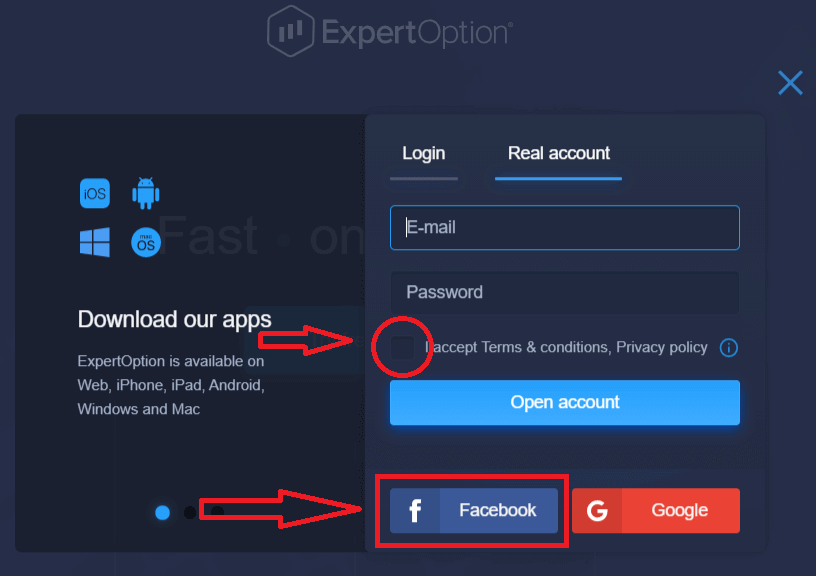
2. The Facebook login window will be opened, where you will need to enter your email address that you used to register on Facebook
3. Enter the password from your Facebook account
4. Click on “Log In.”
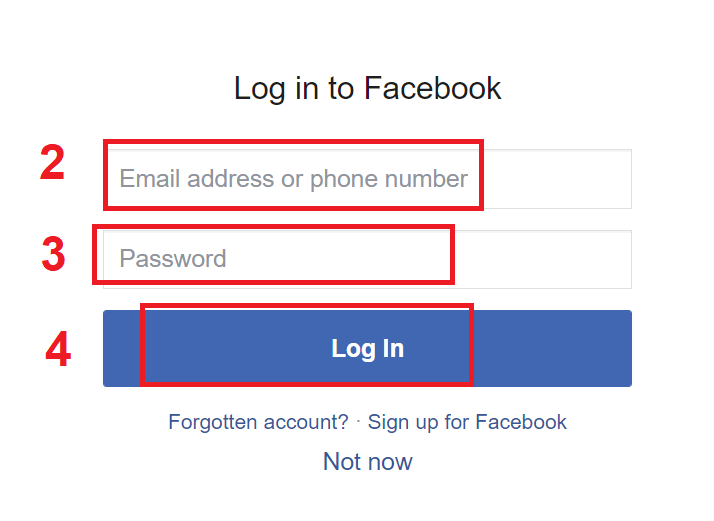
Once you’ve clicked on the “Log in” button, ExpertOption is requesting access to: Your name and profile picture and email address. Click "Continue..."
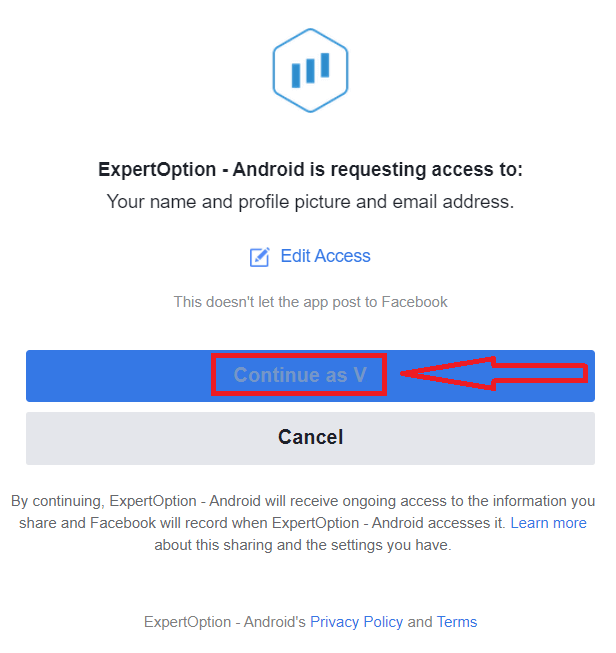
After that, you will be automatically redirected to the ExpertOption platform.
How to Register an ExpertOption Account using Google
1. To sign up with a Google account, check "Terms and Conditions" and click on the corresponding button in the registration form.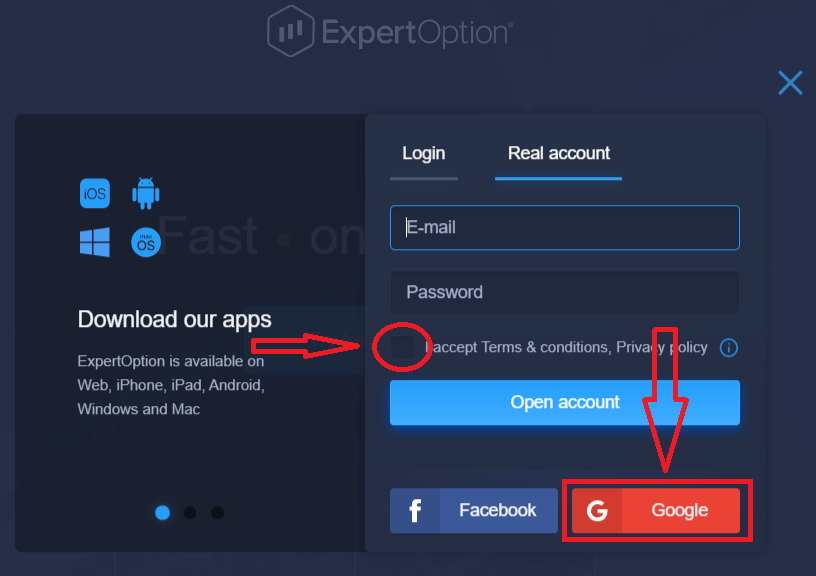
2. In the newly opened window, enter your phone number or email and click "Next".
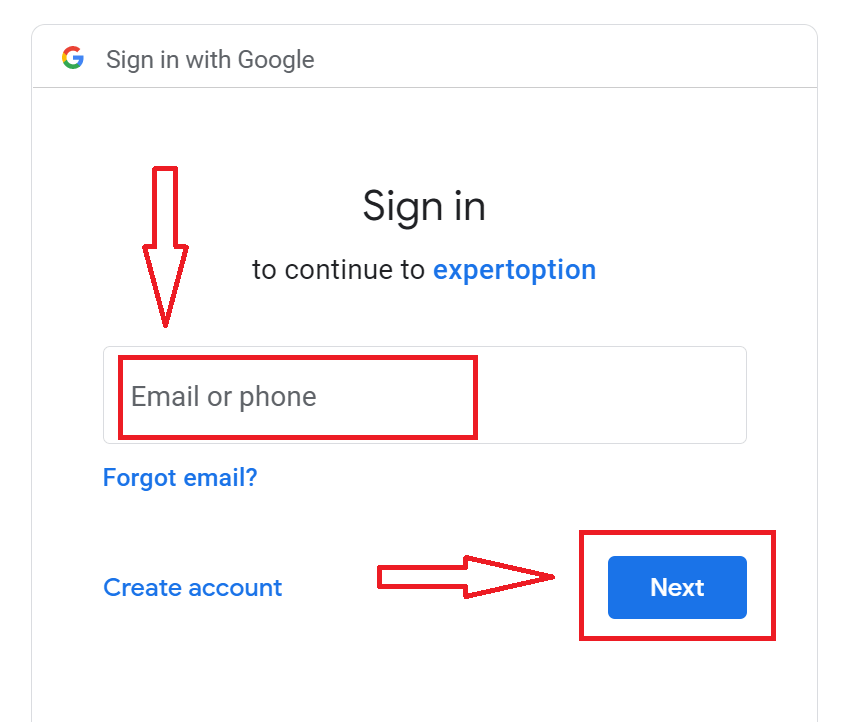
3. Then enter the password for your Google account and click “Next”.
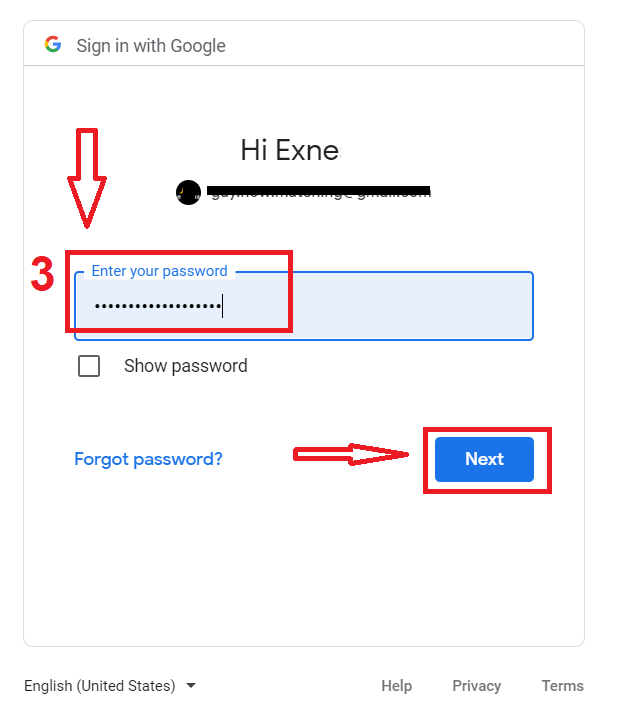
After that, follow the instructions sent from the service to your email address.
Conclusion: Trade Smarter with ExpertOption on Your Desktop
Installing the ExpertOption application on your laptop or PC provides traders with faster performance, a more stable connection, and a user-friendly interface optimized for desktop use. Whether you’re using Windows or macOS, the setup process is quick and straightforward. By trading through the desktop app, you gain access to a professional-grade platform built for serious analysis and smooth execution, helping you stay focused and ahead in the market.
FAQs
For a typical laptop install, use a 64‑bit Windows 10/11 or macOS 10.13+ system, at least 4 GB RAM, a dual‑core CPU, and 200–500 MB of free disk space; a stable broadband connection is required for live trading. Always check the official download page inside the app or on the platform for exact requirements and recommended GPU/OS builds.
Choose the correct OS installer on the official ExpertOption download page, download the installer file, then run it. On Windows accept the User Account Control prompt and follow the wizard; on macOS open the .dmg, drag the app to Applications, and approve permissions in System Preferences if blocked. After installation open the app, allow network access, and proceed to sign in.
Common causes are SmartScreen blocking unknown apps, antivirus quarantining the file, or the installer being incomplete. Right‑click the installer and choose Properties to unblock, run as administrator, temporarily disable third‑party antivirus, or re-download the file. If SmartScreen still blocks it, confirm the publisher name in the digital signature before bypassing warnings.
Install only official packages from the ExpertOption site or verified stores. Check the installer’s digital signature (right‑click > Properties > Digital Signatures on Windows, or check notarization on macOS), compare file size with the published value, and scan the file with your antivirus. Avoid third‑party mirrors and never enter credentials into unofficial builds.
Open the installed app, click Login, and enter your email and password or use social sign‑in if enabled. If you have two‑factor authentication, complete that step. New installations may require email confirmation before full access; if account verification or KYC is pending, trading or withdrawals can be limited until documents are approved.